Webflow CMS Architecture and Editor Handoff: A Practical Guide

A good Webflow CMS is planned around what editors need to do, not around how pages look. Give each repeating content type its own Collection, store shared information once and link to it with reference fields, name every field for the person who fills it in, and add help text and required fields. Then hand the site over with the right site roles, locked design elements, a written editor guide and one real task each editor completes on their own.
This guide is for teams commissioning a Webflow build, and for the developers who structure the CMS. It covers the content model and the handoff, because a well-built CMS that nobody on the marketing team can use still ends up back in the developer's queue.
Why plan the CMS around editors?
Because the alternative is that technical people keep doing content work. According to Webflow's The 2026 State of the Website (with Vanson Bourne; a June–July 2025 survey of Director-level and above marketing and technical leaders in the US, Canada and the UK), “96% of technical leaders report platform and process deficiencies require their teams to get involved in work that should be handled by non-technical stakeholders.”
The pressure on marketing teams is the other half. In Webflow's The 2025 State of the Website (with Vanson Bourne; a June–July 2024 survey of 500 Director-level and above marketing leaders in the US and Canada), “60% of respondents find it difficult to keep up with the number of website projects on their plate.” A CMS that editors can run without help is one of the few fixes inside your control.
What belongs in the Webflow CMS?
Webflow's Intro to the Webflow CMS separates static content, which only changes when you edit it on the page, from dynamic content, which comes from one source and updates everywhere it is used. A testimonial shown on five pages is the standard example: edit it once in the CMS and every instance changes.
A simple test for each content type:
- It repeats with the same structure (blog posts, case studies, events, team members, jobs): make it a Collection.
- It appears on several pages (testimonials, logos, authors, office details): make it a Collection and reference it.
- It appears once and rarely changes (a homepage hero, an About story): keep it static, and make the text editable.
- It changes often but has no structure (a one-off campaign page): build it from components so marketers can assemble it.
How should you structure Collections and fields?
Start from the editor's task, then choose the field. Webflow's Collection fields documentation lists the field types; the ones that matter most for editors are:
- Plain text for titles, summaries and SEO fields, so formatting cannot leak in.
- Rich text for long-form body content, with headings, lists, links and media.
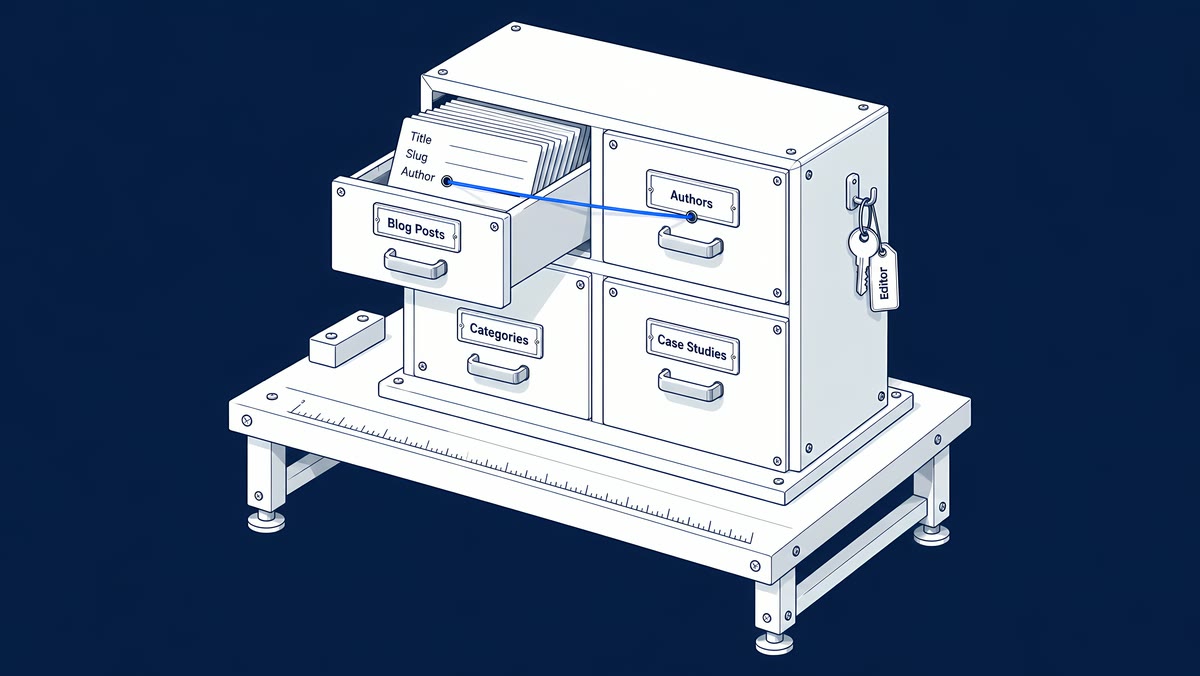
- Reference and Multi-reference to link items, such as a post to its author or a case study to its services, so shared details live in one place.
- Option for a fixed list of values, such as an industry or content type.
- Switch for yes/no choices that drive filters or conditional visibility.
- Image for each image the layout needs, with alt text set per item.
An illustrative case-study Collection:
| Field | Type | Editor instruction | Check before launch |
|---|---|---|---|
| Name | Plain text | The client and project in plain words | Long names fit the card and the page header |
| Summary | Plain text | Two sentences on what was built | Shows correctly on listing cards |
| Main image | Image | Use the agreed crop; write alt text | Image is sharp on mobile and desktop |
| Services | Multi-reference | Pick from the Services Collection | Links reach the right service pages |
| Industry | Option | Choose one value | Filters on the listing page work |
| Body | Rich text | Use H2 for sections, H3 inside them | Headings, lists and links render correctly |
| SEO title and description | Plain text | Write for this project only | Template binds them to the page head |
| Featured | Switch | Turn on to show on the homepage | Homepage shows only switched-on items |
Add help text to every field that is not obvious, mark the essential fields as required, and group fields with field groups when a Collection gets long.
Which CMS mistakes make Webflow hard to edit?
- One Collection per page design instead of per content type, so the same information is typed twice.
- Copying shared details (author bios, office addresses) into every item instead of referencing them.
- Layout settings hidden in text fields, such as colours or class names typed by editors.
- Code pasted into rich text to fix a layout problem the template should solve.
- No empty states: an optional field left blank breaks the card.
- SEO fields missing from the template, so every item page shares one title.
How do you test a Webflow content model before launch?
Test the model with real content before anyone imports the full library. Changing a Collection template changes every page built from it, so problems are cheapest to fix with three items, not three hundred.
- Create three representative items for each Collection: the longest realistic one, the shortest, and one with every optional field left empty.
- Check every place the content appears: the Collection page, listing cards, filters and any homepage or sidebar list.
- Check the references. Change an author's bio or a service name once, and confirm it updates everywhere it is shown.
- Check the page head. View source on an item page and confirm its title, description, canonical and Open Graph image come from that item, not from a default.
- Check schema bindings if the template has structured data. Webflow's schema markup documentation notes that Reference, Multi-reference and Multi-image fields are not supported in schema markup, so plan those values as plain fields if you need them there.
- Ask an editor to add one item using only the field help text. Any question they ask is a missing instruction.
How do you hand the Webflow CMS over to editors?
Give each person the narrowest role that lets them do their job. Webflow's site roles and permissions include Site manager, Designer, Marketer, Content editor and Reviewer. Content editors can create, update and publish Collection items, but cannot create or delete Collections. Only Site managers can access backups. On Growth and Agency Workspace plans you can switch publishing on or off per person with the Can publish setting.
Then lock what should not change. Webflow's content editor documentation explains that Site managers and designers can stop specific elements from being edited in Element settings, under Editing permissions. It also warns that when two people edit the same content at once, the last edit wins, so agree who edits what.
Use this handoff checklist:
- Roles assigned, with publish permission switched on only for the people who should publish.
- Design elements locked where editors should not make changes.
- An editor guide that covers each Collection: what every field is for, image sizes, and who approves a publish.
- A recorded walkthrough of the common tasks, kept with the guide.
- One real task per editor: draft, fill in, preview and publish a CMS item using their own role, without help.
- A named contact for anything the guide does not cover.
How ActiveSet does it
ActiveSet is a Webflow Premium Partner based in Bengaluru, India. Sites are built in, or transferred to, the client's own Webflow workspace, and handover includes editor guides or short recorded walkthroughs.
For Privado, our CMS work since 2022 has included templates for webinars, events and the glossary, and a multi-author blog. For HeartFocus, we built heartfocus.ai with the CMS, forms and English/French localization, moved the project into the client's workspace with an editor guide, and have delivered updates since. Builds follow Finsweet Client-First with the style guide set up first and reusable components.
If your team needs a CMS it can run, start with Figma to Webflow development for a new build, or Webflow maintenance for an existing site.
Frequently Asked Questions
A static page is edited directly and changes only when someone edits it. A Collection stores items with a shared structure, and each item can have its own Collection page built from one template.
Yes, if publishing is switched on for them. Content editors can create, update and publish Collection items. On Growth and Agency Workspace plans, the Can publish setting controls publishing per person.
The content editor role is built to leave the design untouched, and Site managers or designers can lock specific elements against editing. Problems usually come from code pasted into rich text or fields that control layout, so avoid both.
Yes. Add plain text fields for the SEO title and meta description and bind them in the Collection template, so every item page has its own metadata.