How Do You Keep GSAP Animations in Webflow Fast and Accessible?

Animate transform and opacity rather than layout properties. Keep your largest heading visible instead of hiding it until a script runs. Use one interactions system, because Webflow says each version loads its own resources; Interactions with GSAP is the default. Respect visitors' reduced-motion settings with the built-in reduced-motion options or gsap.matchMedia() in custom code, and give visitors a way to pause any motion that runs for more than five seconds.
This guide is for marketing leads and designers who want motion on a Webflow site without slowing it down or making it hard to use. It covers what to animate, how hero animations affect load speed, how to handle reduced motion, and a QA list to run before launch.
Why can animation slow a Webflow page?
Because animation is code that has to load and run before or while the page paints. Webflow's guide to optimizing site speed puts it simply: “Each interaction on your site adds load time.” It recommends using interactions sparingly, reusing the same interaction across elements and avoiding duplicates.
There are three costs to watch:
- Loading. Every library, plugin and interaction runtime is a file the browser downloads and parses.
- Main-thread work. Animations that change layout make the browser recalculate positions on every frame, which competes with scrolling and input.
- Waiting. Content that is hidden until an animation starts cannot count as painted until that animation runs.
The rest of this guide takes each one in turn.
Which properties are safe to animate?
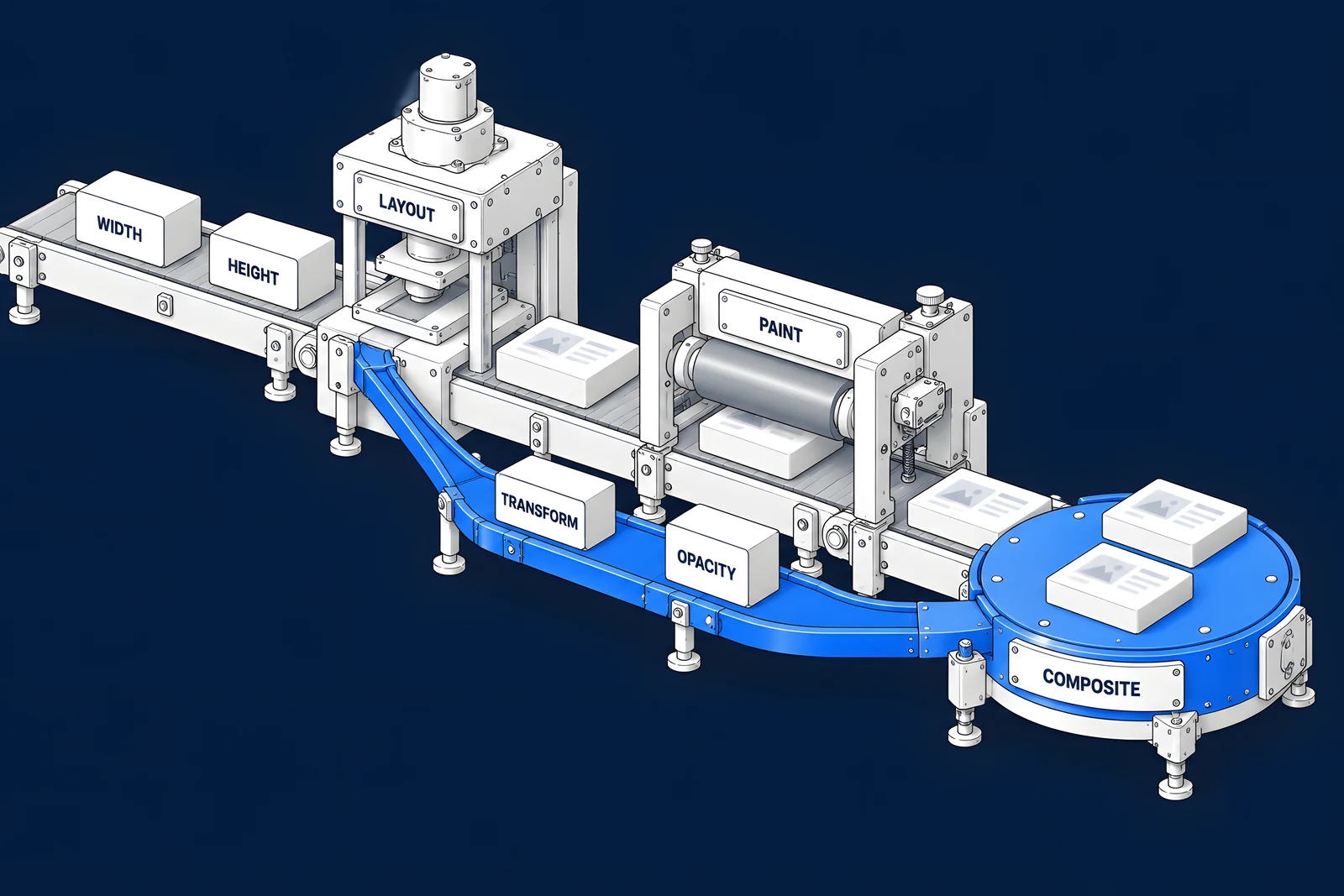
Transform and opacity. Google's web.dev guide to high-performance CSS animations says to check any property other than transform and opacity for its effect on the rendering pipeline, and adds: “Avoid any property that triggers layout or paint unless it's absolutely necessary.”
In practice:
| Effect you want | Animate | Avoid |
|---|---|---|
| Slide in | transform (x, y) | top, left, margin |
| Grow or shrink | transform (scale) | width, height, padding |
| Fade | opacity | other properties used to fake a fade |
| Open a panel | transform on an inner element | height from 0 to its full size |
The same applies inside Webflow's interactions: when you build a transition, choose the specific properties you change rather than animating every property at once.
How do hero text animations affect load speed?
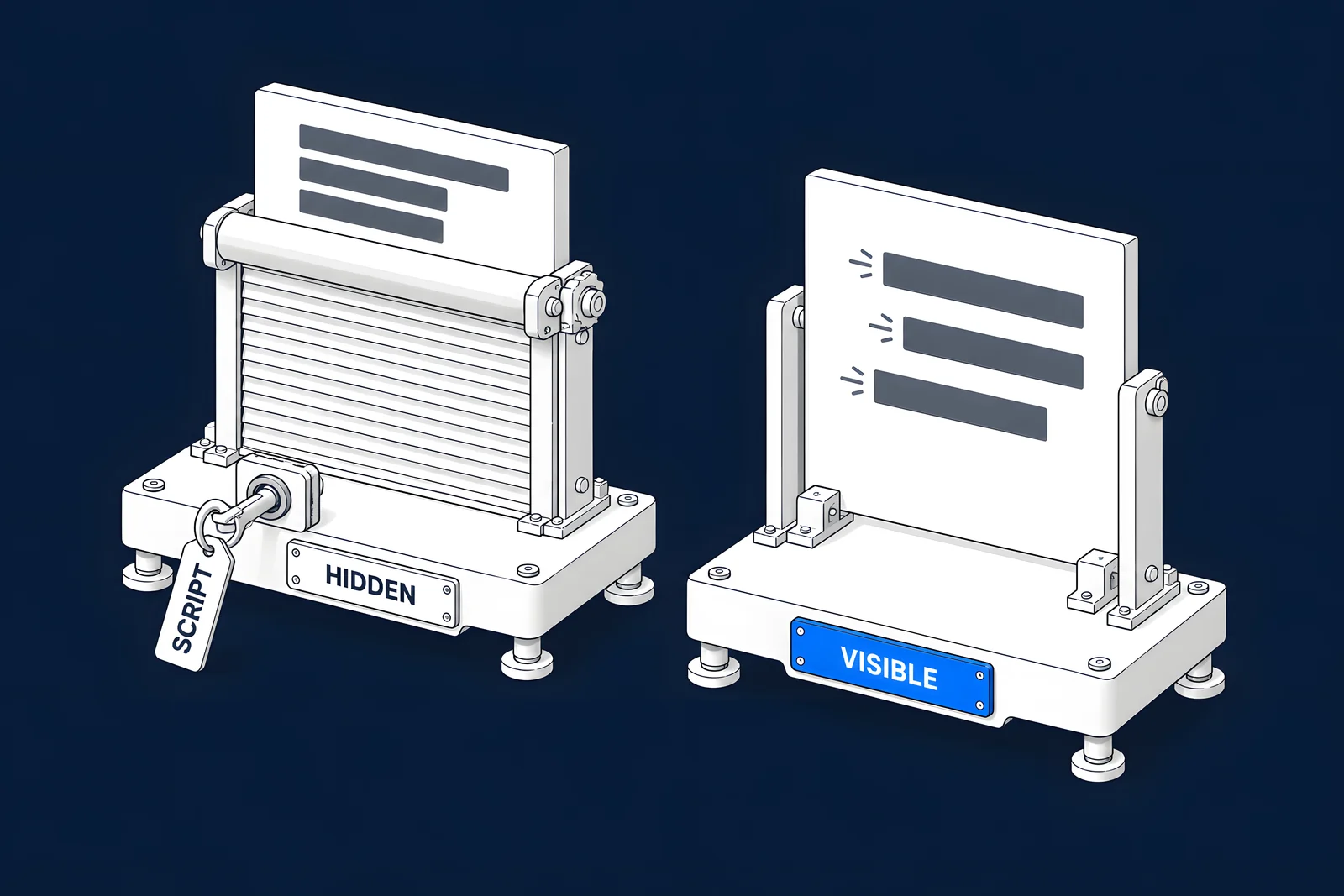
A hero heading that is hidden until a script runs cannot paint until that script runs, and on many pages the hero heading is the largest piece of content in view, so it decides Largest Contentful Paint.
Webflow's own FOUC prevention shows why this matters with Interactions with GSAP. According to FOUC prevention for Interactions with GSAP, “Webflow uses JavaScript to inject the CSS rule visibility: hidden !important; to hide elements that have initial animation states (i.e., from or from/to).” Those elements stay hidden until Webflow initializes the animation and adds a class to the page. That avoids a flash, but it also means a hero heading animated "from" hidden waits for the interactions code.
We saw the same pattern on our own site. In lab measurements on activeset.co (local Lighthouse 12, mobile, 12 October 2026), the LCP element on our homepage and on a service page was the hero heading, not an image, and most of the LCP time was render delay while the browser worked through scripts ahead of the heading's split-text animation.
Two safer patterns:
- Animate "to" from a visible default. Webflow's FOUC article notes that only from or from/to tweens trigger the hiding, so if the heading's normal CSS state is where it starts, a "to" animation never hides it.
- Reveal from a small offset, not from invisible. Keep the heading visible and animate the split lines in from a short distance, so the first paint happens at once and the motion is still there.
Interactions with GSAP or custom GSAP code?
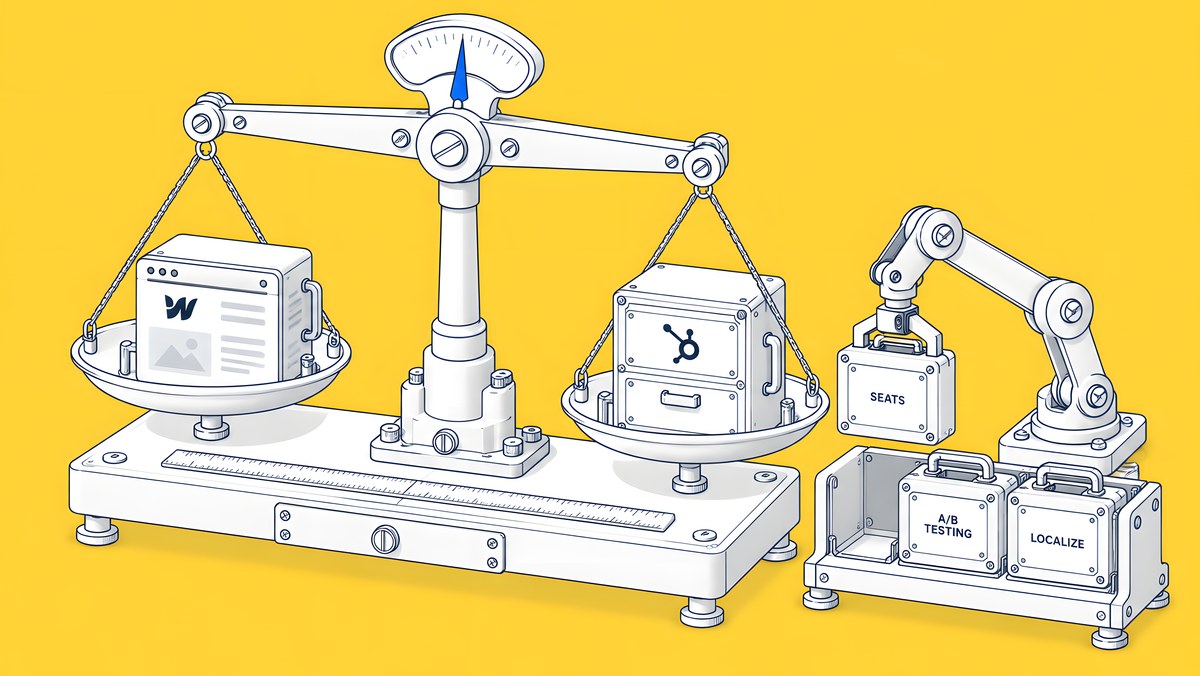
Start with Interactions with GSAP and add custom code only where it falls short. Webflow's comparison of Interactions with GSAP and Classic interactions says Interactions with GSAP is the recommended version and the default on new sites, with SplitText, staggers, ScrollTrigger and prefers-reduced-motion settings built in.
| Question | Interactions with GSAP | Custom GSAP code |
|---|---|---|
| Who builds it | Designers, in the canvas | A developer, in page or site code |
| Reduced motion | Built-in setting per interaction | You write it, for example with gsap.matchMedia() |
| Flash prevention | Automatic for from and from/to | You write it |
| Reuse | Scoped to components and variants | Your own functions |
| Best for | Most page, scroll and hover motion | Complex timelines, canvas or data-driven animation |
Do not mix interaction versions without a reason. Webflow is direct: “each version of Webflow interactions requires load in of its own resources, so the more versions of interactions you use on a site, the less performant your site will be.” It ranks Interactions with GSAP only as the best expected performance, then Classic only, then both. Webflow's introduction to Interactions with GSAP adds that interactions can be scoped to components and variants, so motion travels with a component wherever it is reused.
For custom code, Webflow's Use GSAP in Webflow article says that as of 30 April 2025 all GSAP features, including the previously paid plugins, are supported through a free GSAP library. You turn it on in the Settings panel under GSAP integration and tick only the plugins you use; Webflow registers them for you. Webflow's announcement adds that the standard license was expanded to cover commercial use. Tick plugins only when something on the site uses them, because each one is code every visitor loads.
How do you respect reduced motion?
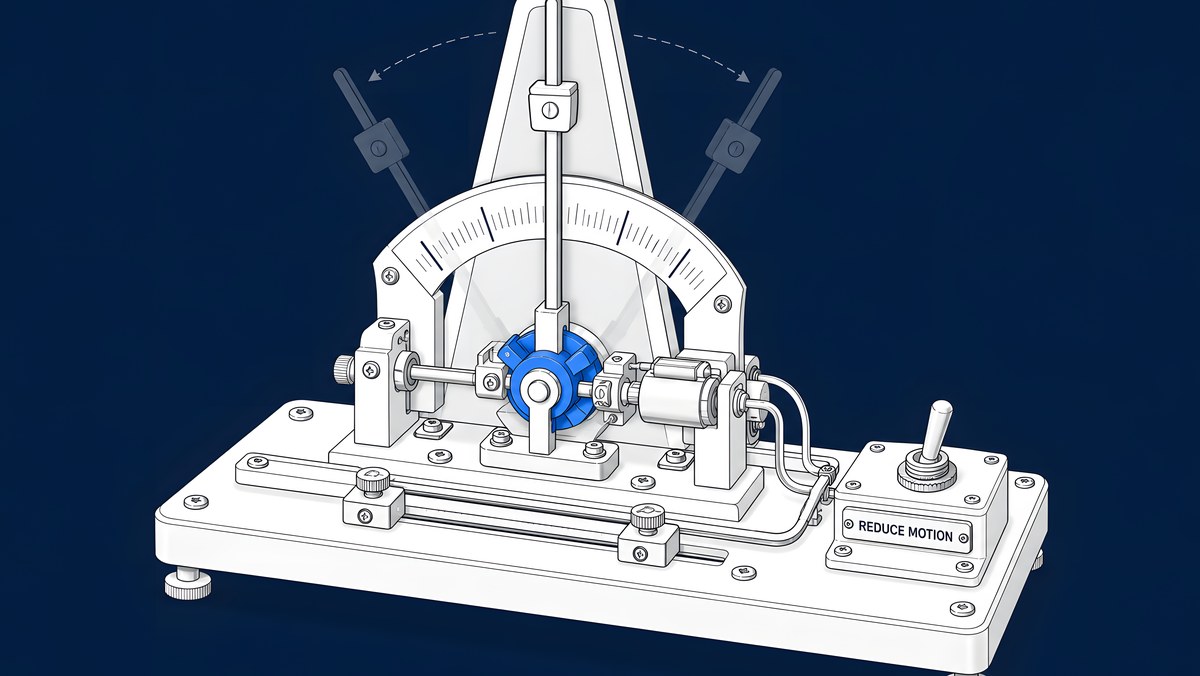
Honour the setting people already chose on their device. MDN's reference for prefers-reduced-motion explains: “The prefers-reduced-motion CSS media feature is used to detect if a user has enabled a setting on their device to minimize the amount of non-essential motion.”
Two WCAG success criteria apply. Pause, Stop, Hide (Level A) asks for a way to pause, stop or hide moving content that starts automatically and lasts more than five seconds. Animation from Interactions (Level AAA) says: “Motion animation triggered by interaction can be disabled, unless the animation is essential to the functionality or the information being conveyed.”
In Webflow:
- Interactions with GSAP. Webflow's thoughtful motion guidance says to set conditional playback for reduced motion to "no animation" or "skip to end", depending on whether visitors should see the start or the end state.
- Smooth scroll. Webflow's smooth scroll article says its smooth scroll already respects the visitor's reduced-motion preference on published sites.
- Custom GSAP code. gsap.matchMedia() runs setup code only while a media query matches, including prefers-reduced-motion, and reverts the animations automatically when it stops matching.
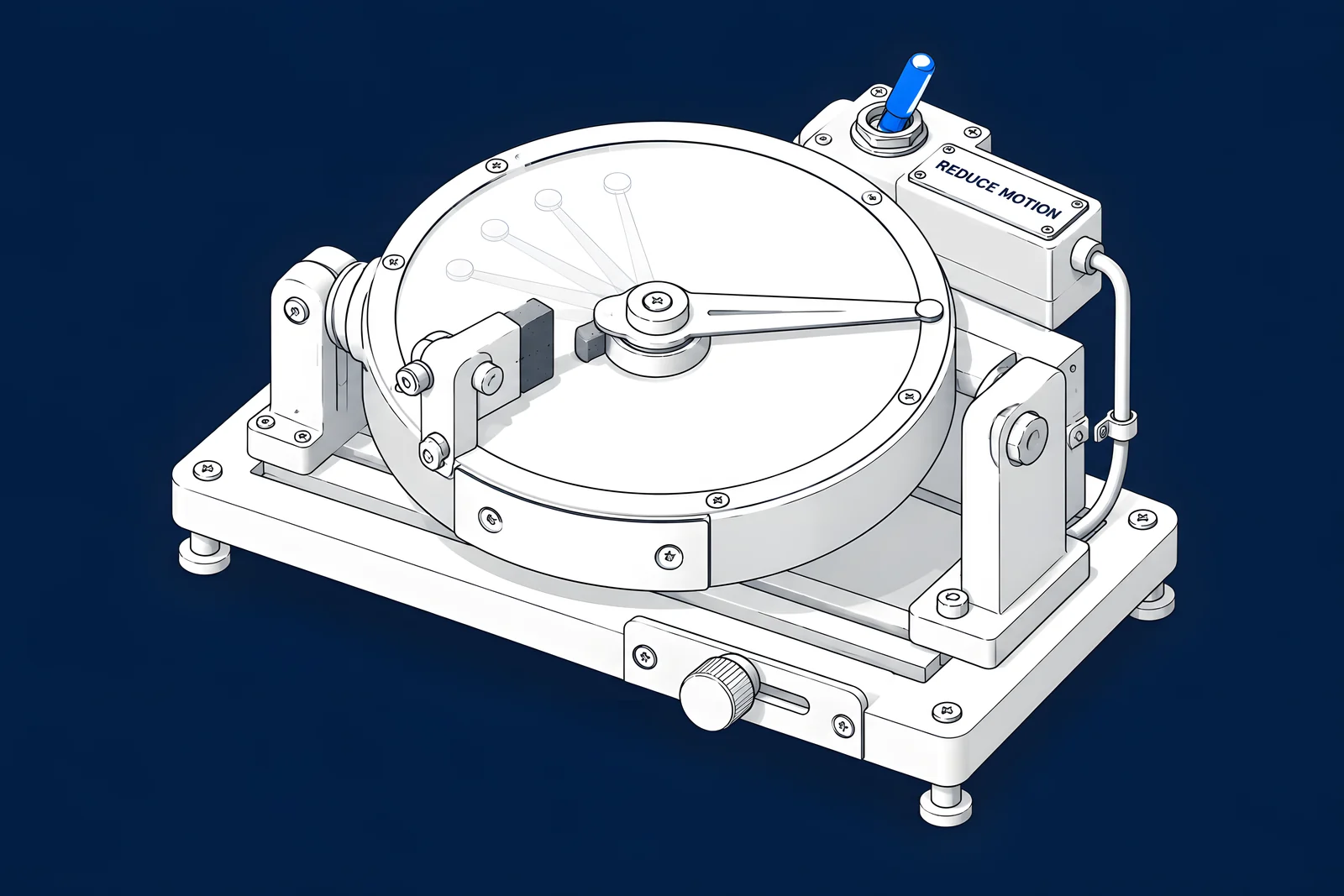
The builder below writes a gsap.matchMedia() block for one effect. Elements stay visible in CSS by default and only animate when the visitor has no reduced-motion preference.
How do you test motion before launch?
Test on the conditions your visitors have, not on a designer's laptop. Run through each page with motion:
- on a mid-range phone, or with CPU throttling in your browser's developer tools;
- with reduced motion turned on in the operating system ("Reduce motion" on Mac and iOS, "Show animations" on Windows), on the published site, because Webflow notes that previews still show smooth scroll;
- with the keyboard only, checking that focus is never hidden by an animation;
- with the console open, looking for errors from animation scripts.
Webflow's motion guidance also lists what to avoid: flashing more than three times per second, rapid or unexpected movement, and using motion to convey critical information. The checklist below covers each one.
When is motion worth its cost?
When it explains, directs attention or confirms an action. Webflow's guidance puts it as ensuring an animation has a positive usability impact, such as directing visitors to key content, while giving people who reduce motion an alternative.
Ask three questions of each animation:
- Does it explain something? A product diagram that assembles step by step can teach faster than a static image.
- Does it direct attention? A subtle reveal can lead the eye to a call to action.
- Does it only decorate? If so, keep it short, keep it to transform and opacity, and keep it off the hero heading.
If an animation fails all three, removing it is the cheapest speed and accessibility improvement you can make.
How ActiveSet does it
ActiveSet is a Webflow Premium Partner based in Bengaluru, India. We build on Finsweet Client-First with the style guide set up first and reusable components, and builds are reviewed on staging with Markup.io before launch. Recent work includes a site built from Figma with light and dark mode and Rive animation, and white-label Webflow development for design studios, including one studio's own website.
If you want motion on your Webflow site that still loads quickly, see Webflow GSAP animation, or Webflow design for the wider design work. Our technical SEO launch checklist covers the speed checks to run at launch, and Astro vs Webflow compares how much control each platform gives you over scripts.
Sources
- Webflow Help Center, How do I optimize site speed in Webflow?, updated 31 Oct 2025, checked 14 Oct 2026
- Webflow Help Center, FOUC prevention for Interactions with GSAP, updated 18 Jul 2026, checked 14 Oct 2026
- Webflow Help Center, Interactions with GSAP vs. Classic Interactions, updated 8 Sep 2026, checked 14 Oct 2026
- Webflow Help Center, Use GSAP in Webflow, updated 18 Jul 2026, checked 14 Oct 2026
- Webflow Help Center, Use thoughtful motion and animation, updated 30 Sep 2025, checked 14 Oct 2026
- Webflow Help Center, Troubleshoot smooth scroll and reduced motion, updated 18 Jul 2026, checked 14 Oct 2026
- Webflow Blog, Webflow makes GSAP 100% free, last updated 16 Jun 2026, checked 14 Oct 2026
- web.dev, How to create high-performance CSS animations, checked 14 Oct 2026
- MDN, prefers-reduced-motion, checked 14 Oct 2026
- W3C, Understanding SC 2.3.3: Animation from Interactions, checked 14 Oct 2026
- W3C, Understanding SC 2.2.2: Pause, Stop, Hide, checked 14 Oct 2026
- GSAP, gsap.matchMedia(), checked 14 Oct 2026
- Webflow Help Center, Intro to Interactions with GSAP, updated 2 Sep 2026, checked 14 Oct 2026
Frequently Asked Questions
Yes. Webflow says that as of 30 April 2025, all GSAP features, including the core library and the previously paid plugins, are supported through a free GSAP library in Webflow. Webflow's announcement adds that the standard license was expanded to cover commercial use. Turn the library on under GSAP integration in the Settings panel and tick only the plugins you need.
Elements with a from or from/to starting state can briefly show their final state before the animation runs. Webflow now hides those elements automatically for Interactions with GSAP until the animation is ready. If flashing remains, the targeting may not translate to a CSS selector, or several animations may target one element with different starting states.
They should change, not disappear. In Interactions with GSAP you set each interaction to "no animation" or "skip to end" for visitors who prefer reduced motion. Webflow's smooth scroll jumps straight to the target instead of scrolling. In custom code, gsap.matchMedia() with a prefers-reduced-motion condition lets you skip or soften the effect.
Yes, but Webflow warns there may be performance costs, because each version loads its own resources. It ranks Interactions with GSAP only as the best expected performance, Classic only second, and both together last. Keep Classic only for features Interactions with GSAP does not have yet, and plan to move them across.
Webflow's GSAP article says to write it in Page settings, Custom code, Before body tag, or in script tags inside an Embed. It recommends wrapping the code in a DOMContentLoaded listener so the elements exist first, and notes that the plugins you enable are registered for you, so you do not load them yourself.