Technical SEO Launch Checklist for Webflow Sites

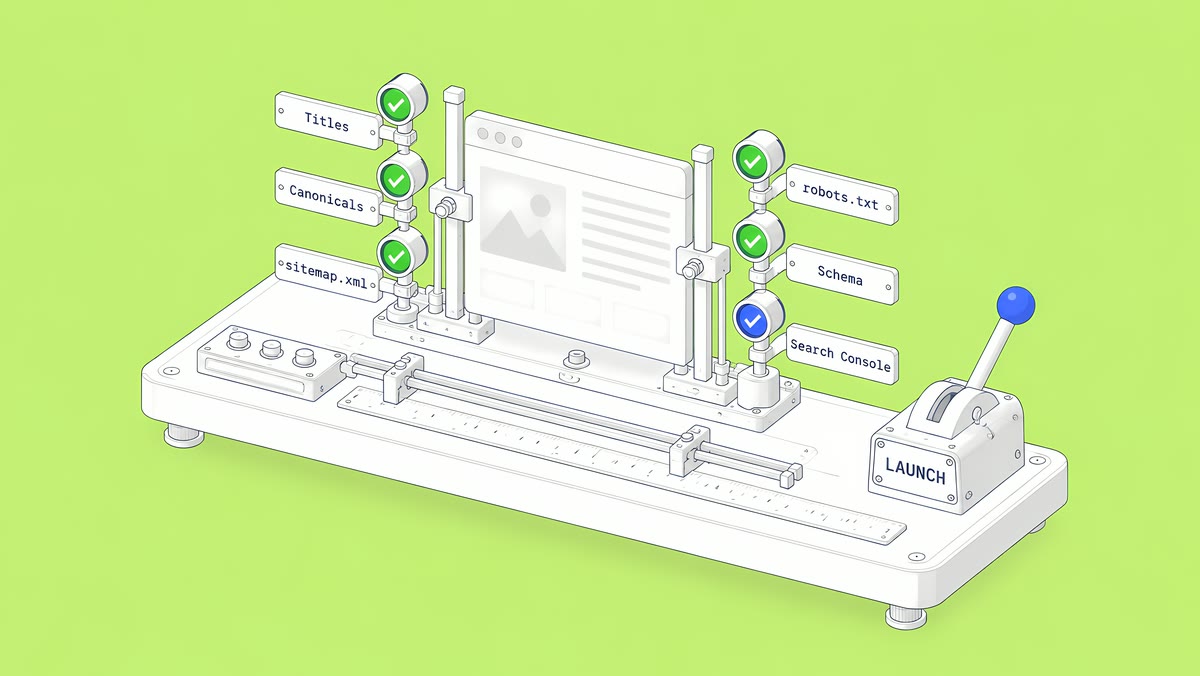
A Webflow launch needs technical SEO checks in three rounds: on staging, in the first hour on the live domain, and in the weeks after. On staging, keep the webflow.io subdomain out of the index, give every page and CMS template its own title and description, and set canonicals, schema and redirects; on the live domain, check robots.txt, the sitemap, canonicals, redirects, forms and analytics, then submit the sitemap in Search Console. Afterwards, compare indexing and clicks against the baseline you recorded before launch.
Most launch problems are small settings that nobody owned: a staging domain left open to search engines, a CMS template with no meta description, a canonical tag pointing at the wrong host. This checklist turns those settings into named checks, with links to Webflow's documentation for each one.
Why does a Webflow launch need its own SEO checklist?
Because the basics are still where most sites fall down. In Your job hasn't changed. The world has. (August 2026), Webflow writes: “We recently analyzed the live websites of more than 2,000 US companies the way an answer engine would read them.” Webflow reports that “62% had broken internal links” and “60% were missing SEO metadata”. Those are vendor figures from Webflow's own index, but they describe exactly the checks below.
Search engines and AI tools both read the same crawlable pages. G2's The Answer Economy (a March 2026 survey of 1,076 B2B decision makers) found that “71% rely on AI chatbots somewhere in the software research process” and that “80% still use Google somewhere in their buying journey”. A launch checklist that gets crawling, indexing and page metadata right serves both.
What should you check on staging before launch?
Work through these in the Designer and Site settings before the custom domain goes live.
Indexing
- Staging indexing is off. In Site settings, under SEO and Indexing, set Staging indexing to off so the webflow.io subdomain publishes a robots.txt that tells search engines to ignore it (Disable search engine indexing).
- Pages you do not want indexed (thank-you pages, internal tools, test pages) have Sitemap indexing turned off in Page settings, which adds a noindex tag and removes them from the sitemap.
- The auto-generated sitemap is on, unless you have a reason to maintain your own (Create a sitemap in Webflow).
Page metadata and content
- Every static page has its own SEO title and meta description. No defaults, no copies.
- Every Collection template binds its title and description to CMS fields, so each item page is unique.
- Each page has one H1, and headings do not skip levels.
- Images have descriptive alt text, or are marked decorative.
- Open Graph title, description and image are set for the pages people will share.
Webflow's Audit panel flags missing alt text, non-descriptive links, skipped heading levels and duplicate element IDs. It does not check inside components or CMS-bound images, so check those by hand.
Canonicals and schema
- The global canonical URL is set to your default domain, with https, with www if your default domain uses it, and without a trailing slash (Set canonical tags).
- Canonicals are set in one place only. If a tag manager already injects canonical tags, do not also set one in Webflow, or pages end up with two.
- Schema markup is added in Page settings or in custom code, not both (Add schema markup in Webflow). On Collection pages, bind dynamic fields so each item has its own data. Reference, Multi-reference and Multi-image fields are not supported in schema markup.
- Schema matches the visible page. Validate it with a structured data testing tool before launch.
Redirects
- The redirect map is final and imported, with existing redirects exported first, because a CSV import replaces all of them (Import/export 301 redirects). If the launch is also a platform move, see Webflow website migration and our WordPress to Webflow migration checklist.
What should you check in the first hour after launch?
Once the custom domain is live, check the real site, not staging:
| Check | Where | Passes when |
|---|---|---|
| robots.txt | yourdomain.com/robots.txt | It does not block the pages you want indexed, and lists your sitemap |
| Sitemap | yourdomain.com/sitemap.xml | It lists live URLs only, each with a lastmod date |
| Canonicals | View source on a static page and a CMS page | Each canonical points at its own https URL on your default domain |
| Default domain | Visit the non-www (or www) version and http:// | All variants land on one https host |
| Redirects | Test the old URLs in your map | Each returns one 301 to the right page |
| Noindex pages | View source on thank-you and test pages | They carry the noindex tag |
| Forms | Submit a labelled test entry on each form | It reaches its real destination |
| Analytics and tags | Open the site with your analytics debugger | Page views and form events fire once |
| Search Console | Submit sitemap.xml and inspect the homepage and one CMS page | Both can be indexed |
Webflow adds the sitemap address to robots.txt automatically, so do not add it a second time by hand.
Which Webflow SEO settings are easy to miss?
A few settings only show up as problems after launch, so check them on purpose:
- robots.txt is not a removal tool. Webflow's indexing documentation notes that content can still be indexed without being crawled, for example if it was published before or is linked from elsewhere. To keep a previously indexed page out of search, do not block it in robots.txt; turn Sitemap indexing off for that page so it carries a noindex tag, and use Google's removals tool if you need it gone quickly.
- Blocked pages can stay in the sitemap. A page disallowed in robots.txt, or given a noindex tag through custom code, still appears in the auto-generated sitemap unless you turn its Sitemap indexing toggle off.
- The sitemap's lastmod dates update on publish. Each URL carries the date that page was last published, and the timestamp only changes after you republish the site.
- Localized sites need hreflang. With Webflow Localize, the auto-generated sitemap includes hreflang tags for static and dynamic pages. A custom sitemap does not, so you would have to add them yourself.
- Your 404 page should not be indexed. Give it useful links back into the site, and keep it out of search results.
- CMS templates need their own Open Graph settings, bound to CMS fields, or every shared item shows the same preview.
What should you watch in the weeks after launch?
Give search engines time to recrawl before judging results. For the first weeks:
- Search Console Pages report: watch for pages excluded as duplicates, blocked or not found.
- 404s: review new ones and add redirects where a real replacement exists.
- Clicks and impressions for the pages that mattered before launch, compared over complete, equal periods against your baseline.
- Structured data reports in Search Console, if your schema types have them.
- Speed and layout on real mobile devices for your main templates.
Log every fix with its date. When traffic moves, a dated log is what lets you tell a launch issue from seasonality.
How ActiveSet does it
ActiveSet is a Webflow Premium Partner based in Bengaluru, India. Our builds follow Finsweet Client-First with the style guide set up first, and every build is reviewed on staging with Markup.io before launch. We have been Privado's Webflow development partner since May 2022, and our work on privado.ai includes ongoing technical SEO.
For launch or post-launch technical SEO on a Webflow site, see Webflow SEO.
Frequently Asked Questions
No. In Site settings, under SEO and Indexing, turn Staging indexing off. Webflow then publishes a robots.txt on the webflow.io subdomain that tells search engines to ignore it.
Yes, if you turn on Auto-generate sitemap in Site settings. Webflow updates sitemap.xml each time you publish and adds its address to robots.txt automatically.
In each page's Page settings, in the Schema markup field, or in custom code. Use one place, not both, and bind dynamic fields on Collection pages so each item has its own data.
As soon as the custom domain is live and you have checked that robots.txt, canonicals and redirects are correct. Then inspect the homepage and one CMS page in Search Console.