How Do You Optimize Images and Video on a Webflow Site?


Upload images close to the size they display at, because Webflow flags anything over 2,000 px. Convert JPEG and PNG files to WebP or AVIF with Webflow's Compress action, after backing up the originals, because conversion replaces them. Upload through the Assets panel or a CMS image field so Webflow creates responsive variants, lazy-load images below the fold but never the main hero image, replace GIFs over 1 MB with video, and host long videos on a video platform. Then check the Bandwidth dashboard every month for the heaviest assets.
This guide is for marketing and web leads whose Webflow site carries a lot of images, screenshots and video. Every platform fact links to Webflow's own documentation, and the checker near the end flags assets the way Webflow's own dashboard does.
Why do images and video matter more after the 2026 plan changes?
Because bandwidth is now tighter for many sites. Webflow's article on updated pricing and simplified plans for May 2026 says that for sites moving from the Business plan to the new Premium plan, bandwidth “decreases from 100GB to 50GB”. For sites in Freelancer or Agency workspaces, the plan changes take effect from 16 November 2026. Premium sites can buy bandwidth add-ons, and for former Business sites that went over 50GB in the past two billing months, Webflow says add-ons are added to cover that usage.
Bandwidth also counts more than people expect. Webflow's Bandwidth overview says: “Webflow counts traffic from any type of user agent (bot or non-bot) and traffic with any status code (e.g., 200, 404s, redirects, etc.).” It names assets such as images and video as what typically uses the most.
Weight is a speed problem too. Every heavy image a visitor downloads is time they wait, and on phones that wait is longer. Lighter assets help both your bill and your visitors.

Which image format should you use in Webflow?
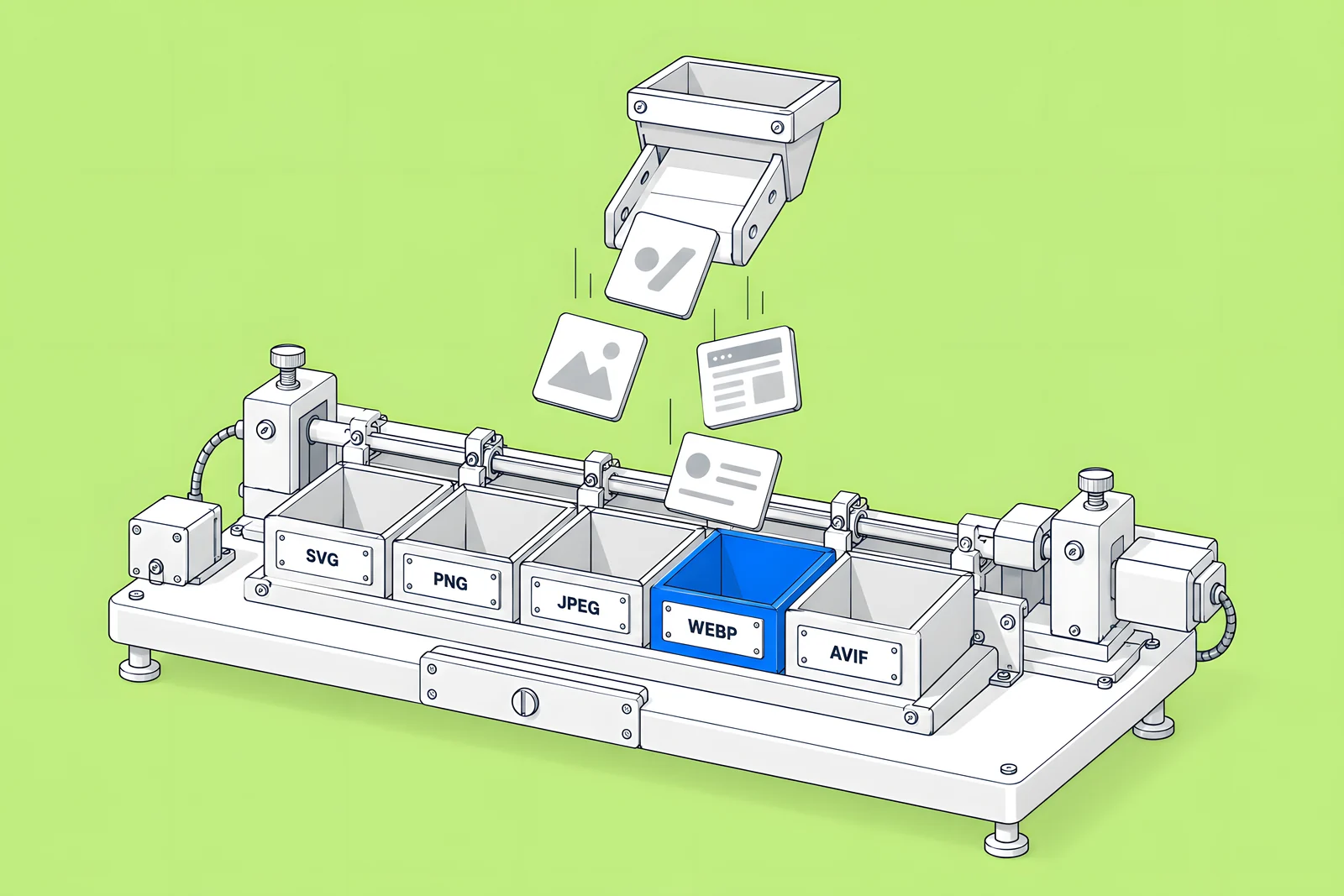
Match the format to the image. Webflow's Assets panel accepts PNG, JPEG, GIF, SVG, WebP and AVIF, with a 4MB limit per image.
| Image | Format | Why |
|---|---|---|
| Logos, icons, simple diagrams | SVG | Vector, sharp at any size |
| Photos and screenshots on pages | WebP or AVIF | Webflow's conversion tool says both retain most of an image's quality at a smaller file size |
| Images that need lossless detail | PNG, then test WebP | Webflow recommends SVG and PNG for high-detail or vector images |
| Open Graph share images | JPEG or PNG | Webflow's docs disagree on WebP for social shares (see below) |
| Short animations | Video instead of GIF | Webflow flags GIFs over 1 MB |
Open Graph images need care. Webflow's Image conversion tool article says to choose WebP rather than AVIF for Open Graph images. Its Assets panel article says “AVIF and WebP images aren't supported for Open Graph images” and recommends not compressing those images at all, and the Open Graph article's image picker only shows JPG and PNG files. Until the docs agree, keep share images as JPEG or PNG.
Webflow's conversion article also notes that WebP and AVIF are not supported on all browsers and email clients, so keep images used in emails as JPEG or PNG too.
How do you convert existing images without losing originals?
Back up first. Webflow's conversion article is clear that “When you convert existing assets to AVIF or WebP, the original asset files will be replaced by the AVIF or WebP asset”, and that you cannot convert them back in Webflow. Download the originals, or confirm you have a site backup that contains them, before you start.
Then convert in two places:
- Assets panel. Open the Assets panel, expand it, select the images, choose AVIF or WebP and click Compress.
- CMS Collections. In the Collections panel, open the more options menu, click Compress assets, choose a format and click Compress.
- Republish once the conversion finishes.
Webflow limits each request to 100 assets and 10 requests a minute, and recommends converting very large images one at a time. If an image will not convert, Webflow says it may already be as compressed as possible. If something goes wrong, Webflow says you can restore a site backup that contains the original assets.
Exclude your Open Graph images from bulk conversion, for the reason in the previous section.
How do responsive images and lazy loading work in Webflow?
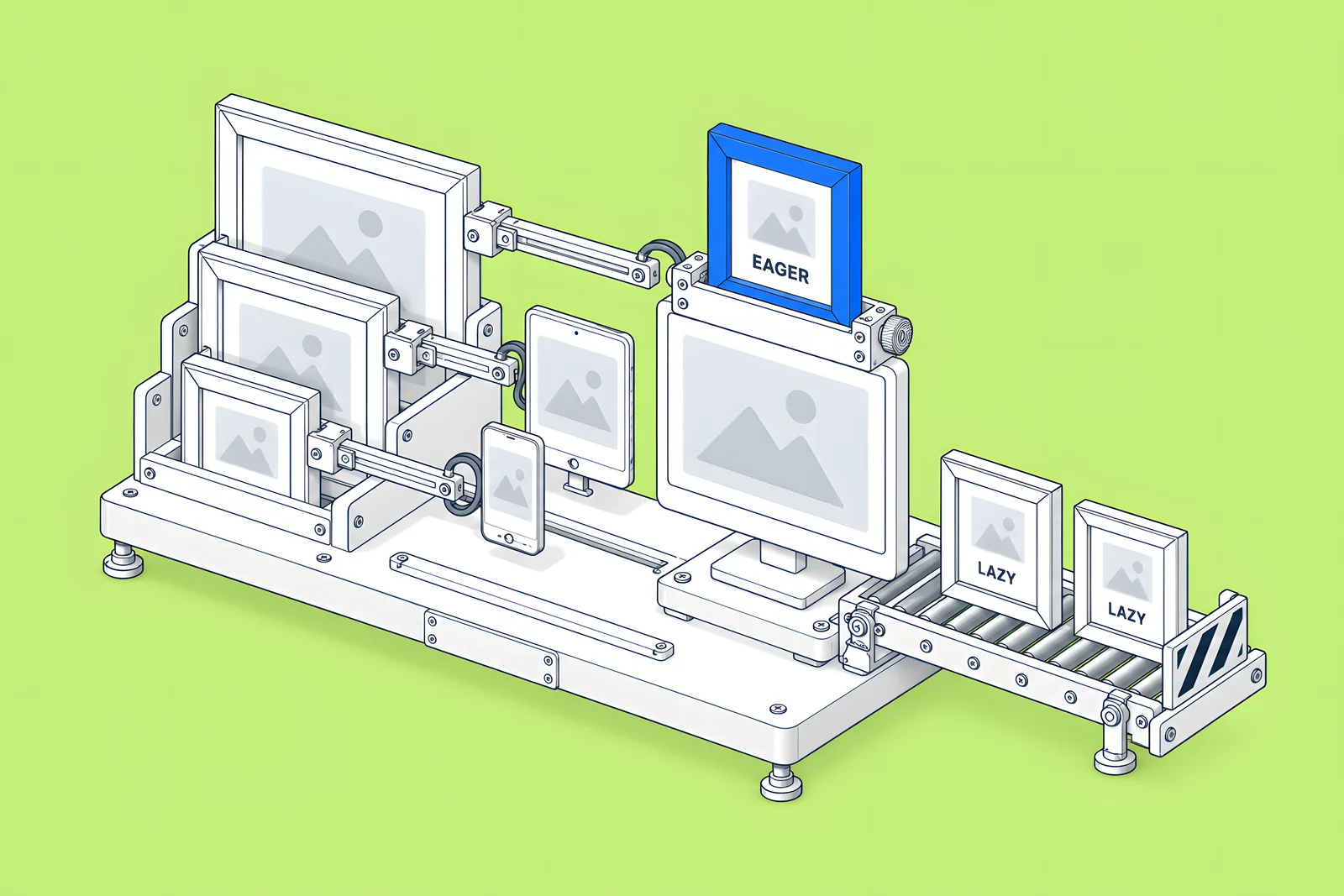
When you upload an image in Webflow, it creates smaller variants and adds srcset and sizes attributes so each browser picks a suitable size. Webflow's Responsive images article lists the exceptions that catch teams out:
- “Images added through a CSV import or the API don’t create responsive variants.” Resize those before import, or upload them in Webflow.
- Variants are not created for images inside rich text elements or for background images.
- If the original is already compressed enough, Webflow uses the original.
For background images, Webflow's Assets panel article says to upload an optimized image at the right resolution, because no variants are made. Its bandwidth guidance also suggests replacing background-image styles with inline images positioned with object-fit, which do get variants.
Each Image element also has a loading setting. Webflow's Image article describes Lazy, Eager and Auto. Use Eager for the main hero image and Lazy for images further down. Google's web.dev guide on optimizing LCP is blunt about the hero: “Never lazy-load your LCP image, as that will always lead to unnecessary resource load delay, and will have a negative impact on LCP.”
The checklist below turns these rules into a list your editors can follow on every upload.
What should you do with background videos and GIFs?
Use fewer of them, make them smaller, and give visitors control. Webflow's Bandwidth dashboard gives three video-related tips:
- Replace GIF with video. For a GIF over 1 MB, Webflow suggests uploading an MP4 and adding a Video element with Autoplay, Loop and Muted enabled.
- Reduce video size. For a self-hosted video over 100 MB, Webflow suggests embedding it from YouTube or Vimeo, or uploading a lower-bitrate version.
- Reduce usage of background videos. It is on Webflow's own list of ways to cut bandwidth.
Webflow's Video element embeds videos from hosts such as YouTube, Vimeo and Wistia, which serve the file instead of your site. Compress any file you do upload before uploading it.
For background videos, keep the play/pause button. Webflow's article on toggling play/pause explains that it supports WCAG's Pause, Stop, Hide criterion, is on by default for background videos added after June 2022, and that if you disable it, visitors with reduced motion turned on cannot play the video.
How do you find the heaviest assets on your site?
Open the Bandwidth dashboard in Site settings, then Site usage. Webflow's Bandwidth overview describes the tools:
- Assets breakdown. Switch between top assets and bandwidth by asset type.
- Assets details page. Filter by All, Top bandwidth (top 50 assets in the period) or Biggest movers (top 50 by change against the previous period), and search by name.
- Export CSV. Download the filtered list.
- Optimization flags. A warning icon appears next to assets that meet Webflow's criteria.
The flags are worth knowing by heart:
| Flag | Webflow's criterion | Webflow's fix |
|---|---|---|
| Resize image | Over 2,000 px on either side | Re-upload at display size |
| Replace GIF with video | GIF over 1 MB | MP4 in a Video element, autoplay, loop, muted |
| Compress image | Not WebP or AVIF | Compress in the Assets panel |
| Reduce video size | Self-hosted video over 100 MB | Embed from YouTube or Vimeo, or lower the bitrate |
| Trim font file | Font over 80 KB loaded more than 1,000 times | Remove unused weights and styles |
| Move to page | JavaScript or CSS bundle over 250 KB | Move page-specific code to that page's settings |
The Where column tells you where each file lives. A "(deleted)" value means a file removed from the CMS is still being requested by cached pages or external links.
Paste your export or a short list into the checker below to apply the same flags.
How often should you check, and who should own it?
Monthly is enough for most marketing sites, plus a check after any large content upload or campaign launch. Webflow's dashboard compares each period with the one before and calls out single-day spikes, so a monthly look catches most problems early.
| Task | Owner | When |
|---|---|---|
| Follow image rules on upload | Content editors | Every upload |
| Review Top bandwidth and Biggest movers | Web lead | Monthly |
| Convert new JPEG and PNG uploads | Web lead | Monthly, after a backup |
| Check usage against the plan limit | Whoever owns Webflow billing | Monthly |
| Review background videos and GIFs | Web lead and design | Quarterly |
Write the editor rules into your handover documents so they survive staff changes. Our Webflow maintenance checklist has the wider weekly, monthly and quarterly routine.
How ActiveSet does it
ActiveSet is a Webflow Premium Partner based in Bengaluru, India. Handover on the sites we build includes editor guides or short recorded walkthroughs, and that is where image rules like the ones above belong. Builds use Finsweet Client-First with the style guide set up first and reusable components.
We apply the same rules to our own site. On activeset.co in October 2026 we moved project and homepage videos off an uncached external host onto Webflow's CDN, re-encoded them, served a smaller file to phones, loaded the full showreel only when a visitor clicks it, and stopped hidden project-card videos from autoplaying.
If you want help keeping a Webflow site light month to month, see Webflow maintenance. For the search side of site speed, see Webflow SEO.
Sources
- Webflow Help Center, Updated pricing and simplified plans for May 2026, updated 31 Aug 2026, checked 14 Oct 2026
- Webflow Help Center, Bandwidth overview, updated 31 Aug 2026, checked 14 Oct 2026
- Webflow Help Center, Assets panel, updated 2 Jun 2026, checked 14 Oct 2026
- Webflow Help Center, Image conversion tool, updated 8 Sep 2026, checked 14 Oct 2026
- Webflow Help Center, Control the look of social shares with Open Graph, updated 7 Sep 2026, checked 14 Oct 2026
- Webflow Help Center, Responsive images, updated 8 Sep 2026, checked 14 Oct 2026
- Webflow Help Center, Image, updated 19 May 2025, checked 14 Oct 2026
- Webflow Help Center, Video, updated 17 Dec 2025, checked 14 Oct 2026
- Webflow Help Center, Toggle play/pause on background videos, updated 15 Oct 2024, checked 14 Oct 2026
- Webflow Help Center, Disable search engine indexing, updated 8 Sep 2026, checked 14 Oct 2026
- web.dev, Optimize Largest Contentful Paint, checked 14 Oct 2026
Frequently Asked Questions
Partly. Webflow creates smaller responsive variants of images uploaded through the Assets panel or a CMS image field, but not for CSV or API imports, rich text images or background images. Converting JPEG and PNG files to WebP or AVIF is a manual step with the Compress action, and it replaces the original files, so back them up first.
Webflow's Assets panel accepts images up to 4MB each. Size is only part of it: Webflow's Bandwidth dashboard flags any image over 2,000 px on either side and suggests re-uploading it at display size. Resize large photos before upload so both the file size and the dimensions stay reasonable.
Both are supported for images on your pages, and Webflow's conversion tool offers either. For Open Graph share images, keep JPEG or PNG: Webflow's own articles disagree on whether WebP works for social shares, and its Open Graph image picker only shows JPG and PNG files. Also keep images used in emails as JPEG or PNG.
You can upload video for background videos, and Webflow's bandwidth tips mention uploading an MP4 for short looping clips. For long videos, Webflow suggests YouTube or Vimeo for any self-hosted file over 100 MB, and its Video element embeds from those and other hosts. That keeps large files off your site's bandwidth.
Yes. Webflow counts traffic from any user agent, bot or not, and from any status code, including 404s and redirects. Its dashboard does not separate bot traffic. Webflow notes that blocking bots in robots.txt can reduce bandwidth but may also reduce your visibility in search and AI tools, so weigh that first.