What Should You Check Before Launching a Webflow Landing Page?

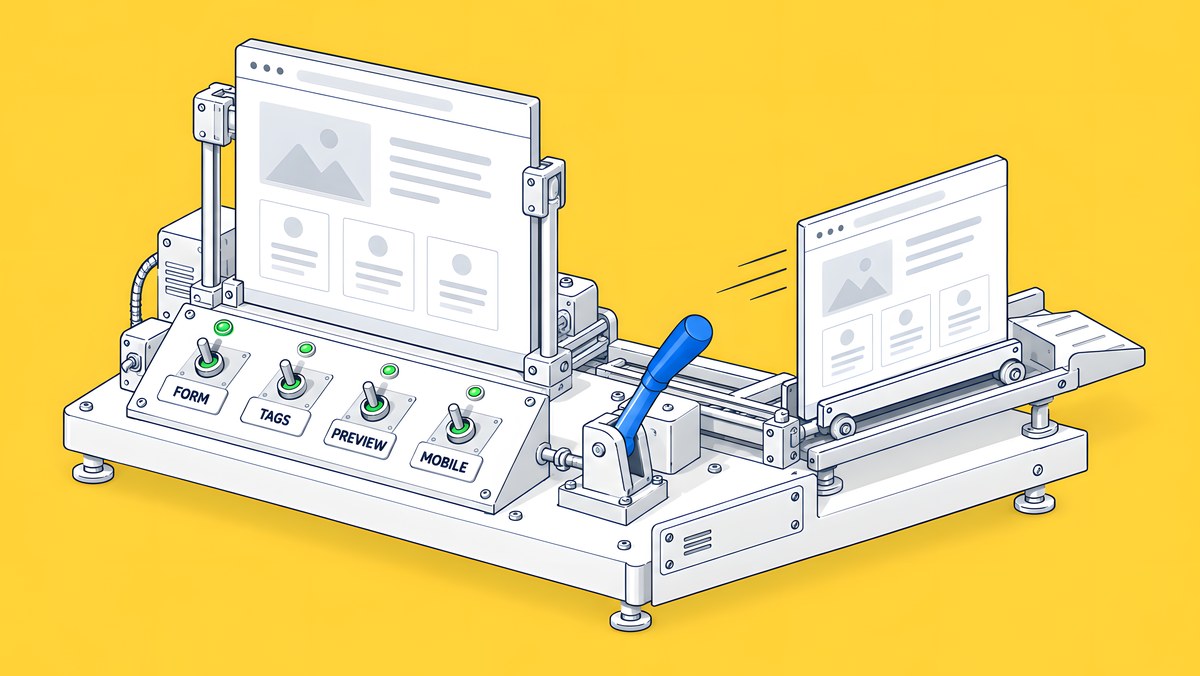
Before any traffic arrives, decide whether the page should be indexed, send a labelled test submission through the form all the way to your CRM, tag every campaign link with consistent lowercase UTM parameters, confirm each tag fires once and respects consent, check the share preview, and test the page on a real phone. Then publish only what you mean to. On Team and Enterprise plans you can publish a single page; on other plans, publishing ships every staged change with it.
This checklist is for the campaign or demand-gen manager sending paid or email traffic to a Webflow page. The site-level checks in our technical SEO launch checklist still apply; this post covers what is specific to campaign pages, where a broken form or a missing tag costs paid clicks from the first hour.
Should a campaign landing page be indexed?
Decide per page, before launch, and write the decision down.
- Paid-only pages (variants for ads, email or partner traffic) usually should not be indexed. They often repeat content from your main pages, and you want ad traffic to land there, not organic searchers.
- Organic or evergreen pages (a product use case, a solution page you also advertise) should be indexed like any other page.
To keep a static page out of search, Webflow's Disable search engine indexing guide uses the Sitemap indexing toggle in Page settings: “The Sitemap indexing toggle adds <meta content="noindex" name="robots"> to your site page.” The page also leaves the auto-generated sitemap. For landing pages built from a CMS template, each item has its own Sitemap indexing toggle on paid Site plans; in Webflow's words, “When disabled, the CMS item will include a noindex meta tag, instructing search engines not to index it.”
Two details catch teams out. Webflow advises against using robots.txt to remove a page that is already indexed; use the toggle instead. And set the thank-you page to noindex too, so nobody lands on it from search and fires a false conversion.
How do you test the form and the lead path?
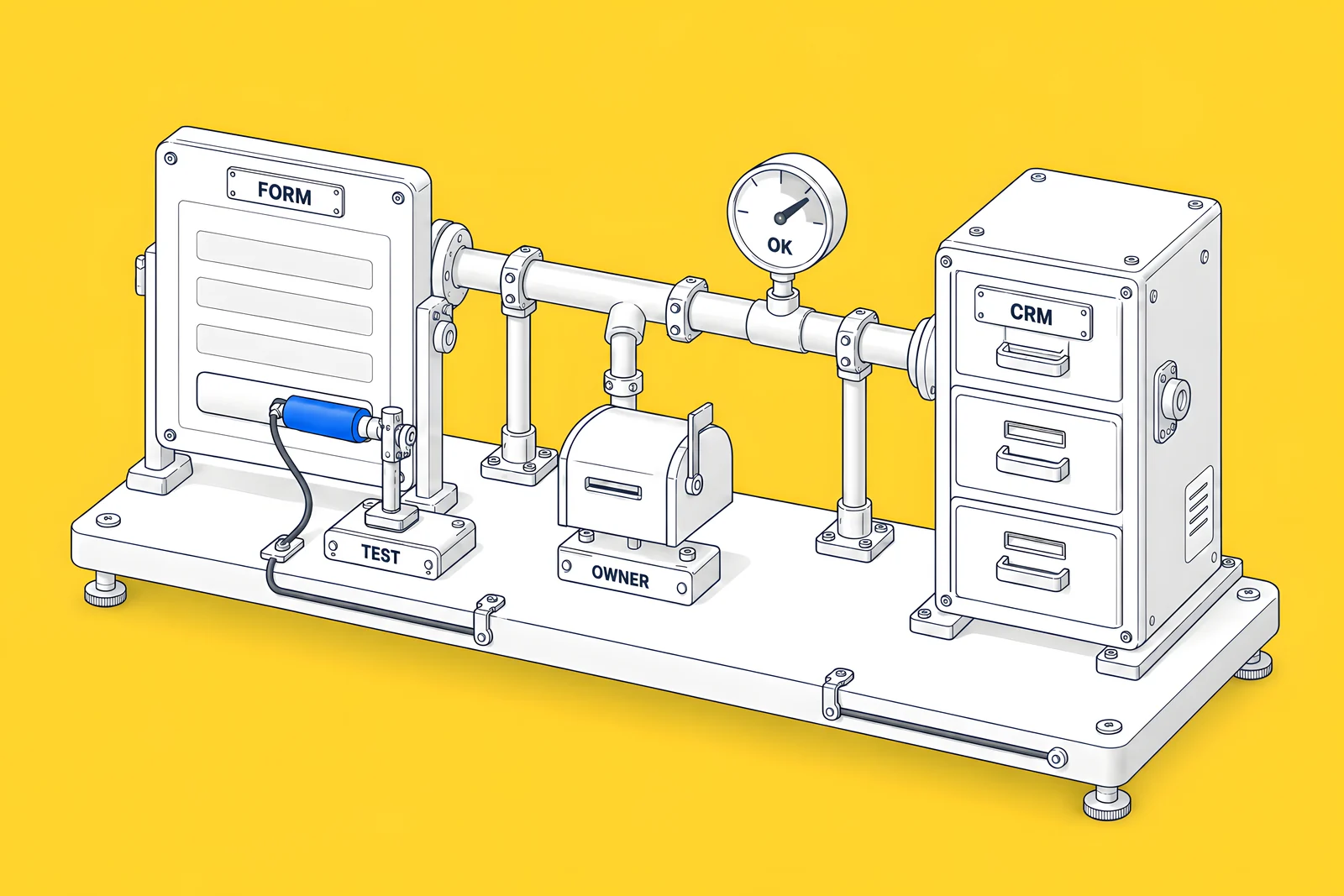
Submit a real test, end to end, on staging and again on production. Use a labelled entry so nobody mistakes it for a lead: a name such as QA test, ignore and an address your team controls.
Then check every step the entry should reach:
- Webflow's form submissions. Webflow stores submissions under Site settings > Forms and can email a notification for each one, per its form submissions guide. Webflow recommends a named recipient address rather than a role-based one such as info@, for deliverability.
- The CRM or marketing tool, with the right source, campaign and owner on the record.
- The notification to the named owner, who knows to follow up.
- The thank-you page or message, and the conversion event (see the tags section).
- Error states. Submit the form empty and with a malformed email; the errors should say what is wrong in plain text.
Spam protection belongs in the same test. Webflow's spam prevention guide describes reCAPTCHA, bot blocking, spam filtering and a honeypot. If bot blocking is on, submit buttons are disabled while it loads, so style the button's disabled state so it does not look broken. Delete or tag the test entries afterwards so they do not distort campaign reports.
How do you tag campaign links with UTM parameters?
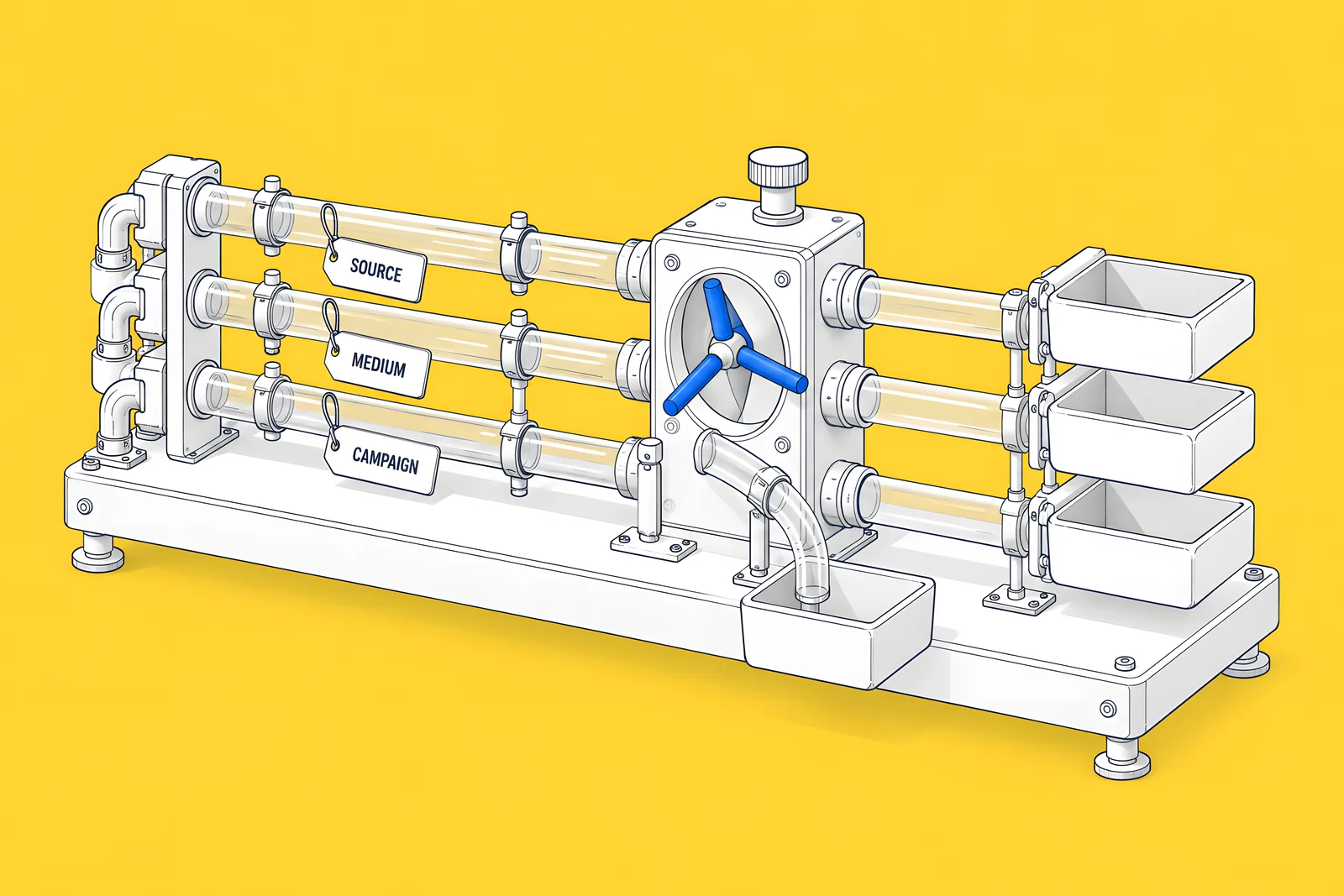
Google Analytics reads campaign parameters on the landing URL. Its URL builders guide says: “When you add parameters to a URL, you should always use utm_source, utm_medium, and utm_campaign.” It also warns: “Parameter values are case sensitive, e.g. utm_source=google is different from utm_source=Google.”
That case rule is the most common reason one campaign shows up as several rows. A practical convention:
| Parameter | Use for | Example values |
|---|---|---|
| utm_source | The platform or sender | linkedin, google, newsletter |
| utm_medium | The channel type | paid_social, cpc, email |
| utm_campaign | One name per campaign, matching your ad platform | q4-demo-offer |
| utm_content | The creative or link variant | video-a, cta-footer |
| utm_term | The paid keyword | webflow-agency |
Write values in lowercase, agree the list before launch, and never put UTM parameters on internal links between your own pages, because they overwrite the original campaign source. The checker below flags missing parameters, mixed case, unencoded spaces and links that point at the webflow.io staging domain.
Which tags should fire, and how do you check them?
At minimum: one page view per load, and one conversion per successful form submission. Not two, which happens when a tag is added both in Webflow's custom code and in a tag manager.
- Google Tag Manager users: Tag Manager's preview and debug mode lets you browse the site with the draft container and see in Tag Assistant which tags fired and in what order.
- Google Analytics: DebugView shows the events Analytics collects from your device in real time once debug mode is on, so you can submit the test form and watch the conversion arrive.
- Consent. Run the test twice: once accepting and once declining your consent banner. Tags that need consent should not fire after a decline. Webflow's guide to managing site tracking consent covers consent options for Webflow Analyze and Optimize; take legal advice on what your banner must do.
- Ad platform pixels, if you use them: check each one reports the page view and the conversion once.
How will the page look when it's shared?
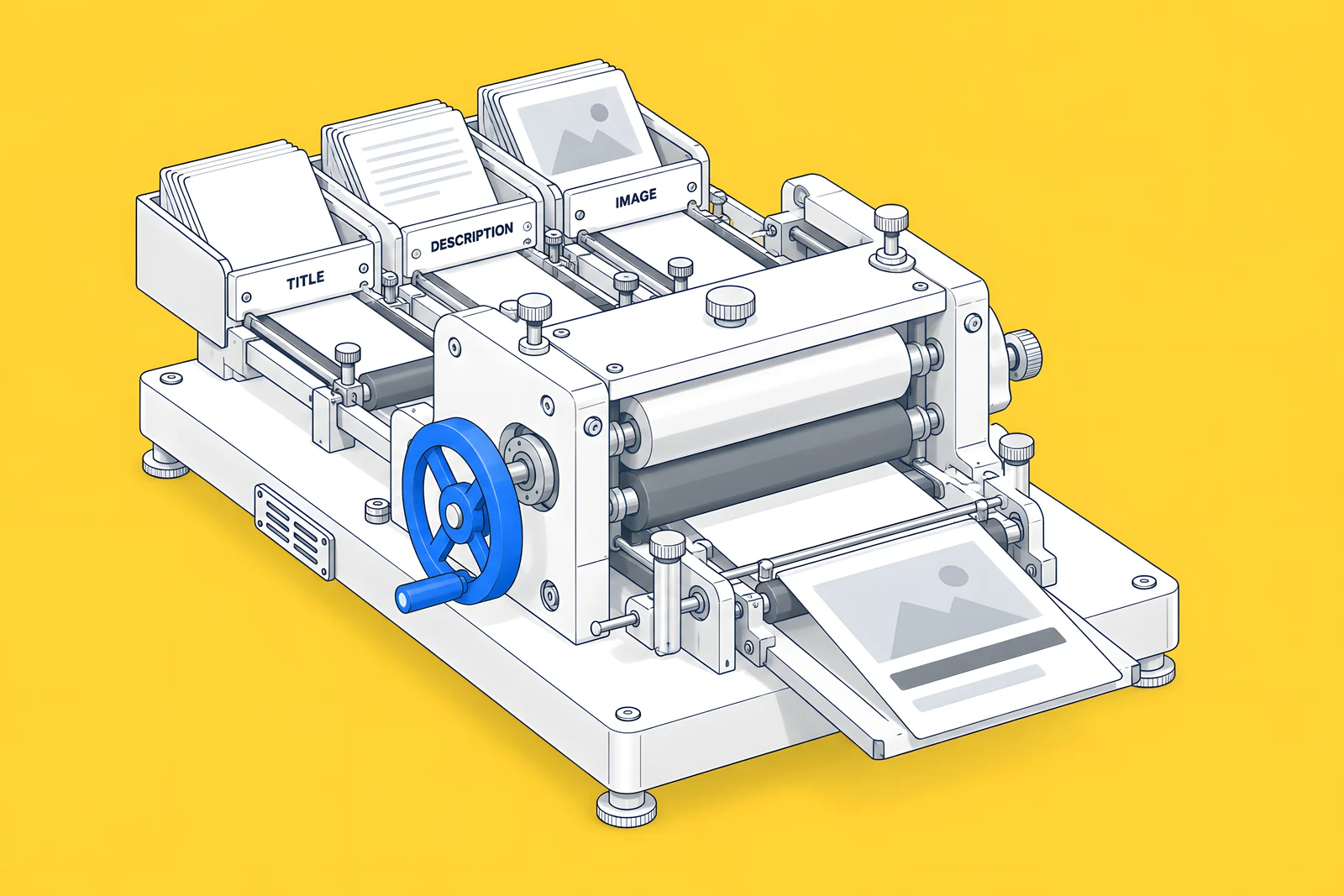
Campaign pages get shared in Slack, LinkedIn and email, and a blank or wrong preview undermines the click. Webflow's Open Graph guide says that without Open Graph settings, “random content (or no content) will appear when your site is shared on social media”, and that Open Graph tags must be set per page, not globally.
Set three fields in Page settings > Open Graph settings: title, description and image. For the image, Webflow's image conversion guide warns: “AVIF images aren’t widely supported for Open Graph images.” The Open Graph image picker shows only JPG and PNG files from your assets; a WebP image can be added by URL, though Webflow notes platform support varies. A JPG or PNG is the safe choice. Check the preview in each platform where you will post the link.
Which mobile and speed checks matter most?
Assume most visitors are on a phone. According to Unbounce's 2024 Conversion Benchmark Report (vendor research based on Unbounce platform data, July 2023 to July 2024), “83% of landing page visits were on a mobile device, yet mobile converts 8% less than desktop”. For SaaS pages specifically, the same report found that “In SaaS, 79% of all landing page visits happened on mobile devices.” Your own analytics will differ, but the direction is clear: QA on mobile first.
- Test on a real, mid-range phone, not only in the Designer's mobile view.
- Do not lazy-load the hero image. web.dev's Optimize LCP guide is direct: “Never lazy-load your LCP image, as that will always lead to unnecessary resource load delay, and will have a negative impact on LCP.” In Webflow's image settings, set the hero image's loading behaviour to Eager.
- Fill the form with the on-screen keyboard open: fields stay visible, the right keyboard appears for email and phone, and the submit button is reachable.
- Watch for layout shift as fonts, embeds and cookie banners load.
- Record a Lighthouse mobile run for the page, so you have a baseline if someone reports it as slow.
How do you publish one page without shipping other changes?
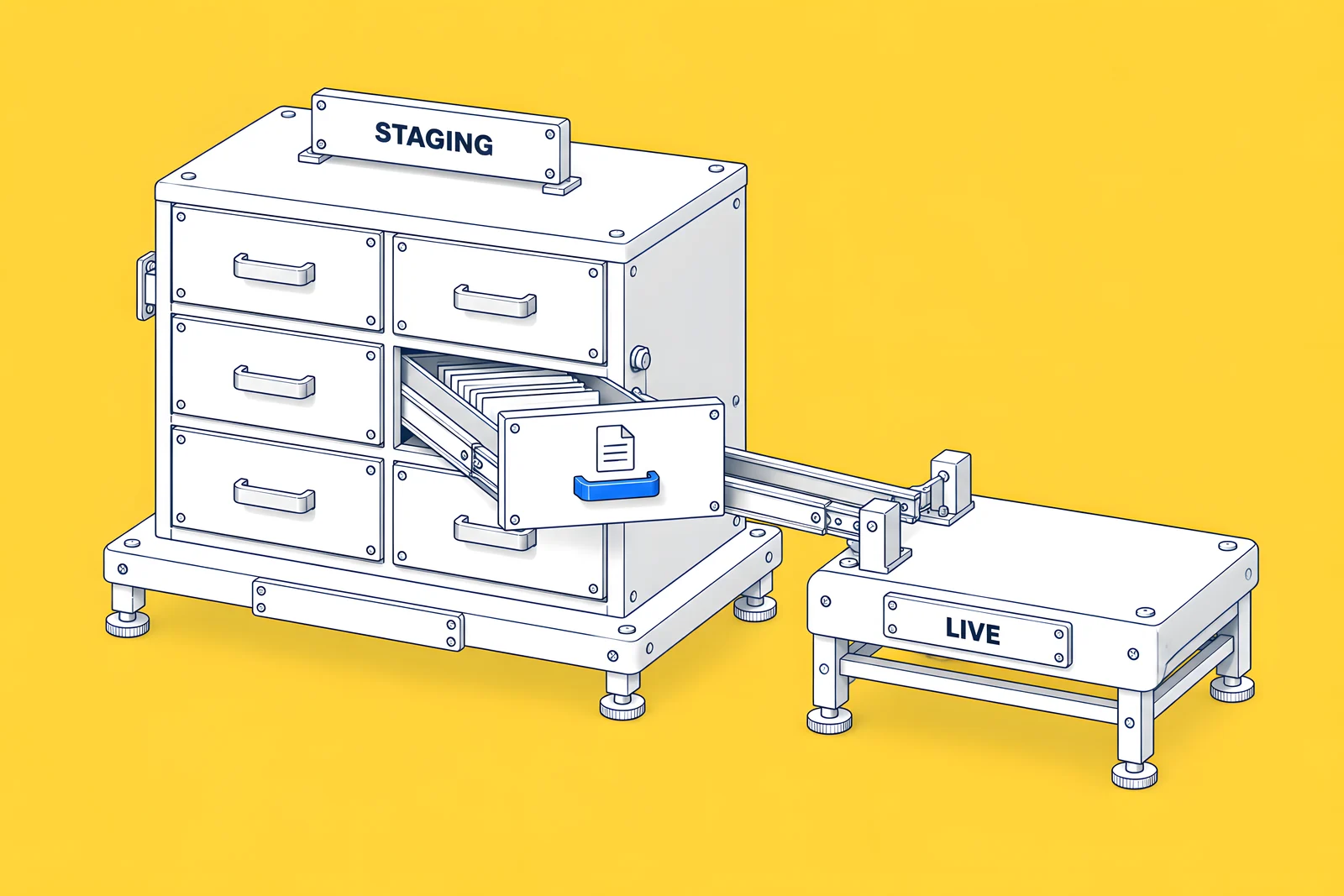
On Team and Enterprise plans, use single-page publishing. Webflow's Publish a single page guide says: “Single-page publishing is available on Team and Enterprise Platform plans only.” The site must have had at least one full-site publish first.
Read the options carefully in the publish modal. Choose This page, then Publish to all domains from the Publish to staging menu to push just that page to staging and production. Publish to production is different: it makes production match staging, which includes every staged change, not only your page. If the page uses a global style, component, variable or interaction that changed since the last full publish, only that page shows the change until you publish the full site. Single-page publishing also has no rollback and does not publish CMS item content.
On other plans there is no single-page option: publishing ships everything staged. Before launch, review staging for unrelated work in progress, agree with whoever else edits the site, and publish when only intended changes are waiting.
After publishing, open the live URL, submit the form once more and check the tags again.
How ActiveSet does it
ActiveSet is a Webflow Premium Partner based in Bengaluru, India. For a past client, we built campaign and test landing pages on Webflow and set up Webflow Optimize. Our builds are reviewed on staging with Markup.io before launch, and work is tracked in ClickUp and a shared Slack channel, so form, tracking and preview checks have a place to be recorded and signed off.
If you are planning campaign pages, see Webflow landing pages. For CRM and form connections, see Webflow integrations.
Sources
- Webflow Help Center, Disable search engine indexing, updated 8 Sep 2026, checked 14 Oct 2026
- Webflow Help Center, Form submissions, updated 1 Aug 2026, checked 14 Oct 2026
- Webflow Help Center, Prevent spam in form submissions, updated 31 Oct 2025, checked 14 Oct 2026
- Google Analytics Help, URL builders: Collect campaign data with custom URLs, checked 14 Oct 2026
- Tag Manager Help, Preview and debug containers, checked 14 Oct 2026
- Google Analytics Help, Monitor events in DebugView, checked 14 Oct 2026
- Webflow Help Center, Manage site tracking consent, updated 26 Mar 2026, checked 14 Oct 2026
- Webflow Help Center, Control the look of social shares with Open Graph, updated 7 Sep 2026, checked 14 Oct 2026
- Webflow Help Center, Image conversion tool, updated 8 Sep 2026, checked 14 Oct 2026
- Webflow Help Center, Image, updated 19 May 2025, checked 14 Oct 2026
- web.dev, Optimize Largest Contentful Paint, checked 14 Oct 2026
- Webflow Help Center, Publish a single page, updated 10 Aug 2026, checked 14 Oct 2026
- Unbounce, 2024 Conversion Benchmark Report, data July 2023 to July 2024 (vendor research)
Frequently Asked Questions
Usually not. A page built only for ads or email does not need organic traffic, and keeping it out of search avoids duplicating your main pages. In Webflow, turning off the Sitemap indexing toggle in Page settings adds a noindex tag and removes the page from the auto-generated sitemap. Ads still reach the page normally.
Yes, on Team and Enterprise plans, after at least one full-site publish. Choose This page in the publish modal, then Publish to all domains to push only that page to staging and production. Publish to production would also release every other staged change. On other plans, publishing releases everything that is staged.
Usually because the values differ in case or spelling. Google Analytics treats utm_source=LinkedIn and utm_source=linkedin as different values, because parameter values are case sensitive. Agree one lowercase list of sources, mediums and campaign names before launch, and check every link against it.
Use JPG or PNG. Webflow's Open Graph image picker shows only JPG and PNG files from your assets, and Webflow warns that AVIF images are not widely supported for Open Graph. WebP can be added by URL, but platform support varies. Check the preview in each platform you will post to.
Label every test clearly, for example with a name such as QA test, ignore, and an address your team owns. Delete or tag the entries in Webflow and your CRM afterwards, and exclude your own devices or test traffic in analytics if your set-up supports it.