How Do You Run Your First A/B Test with Webflow Optimize?


Webflow Optimize is a paid add-on that runs tests and personalisation on your Webflow pages, and every optimization needs a target goal. For a first A/B test, choose a traditional test: it splits traffic at fixed percentages and names a winner once results reach statistical significance. Change one thing, set the goal and traffic split before launch, leave the test alone while it runs (editing it starts a new interval), and remember Optimize follows the same tracking and consent settings as Webflow Analyze.
This guide is for marketers with a Webflow site and enough traffic to test. It covers set-up, choosing a test type, writing the hypothesis, goals and traffic, why live edits hurt, consent, and how to read and ship the result. There is a decision tree and a test brief checklist along the way.
What do you need before you can run a test?
Three things: the add-on, tracking switched on, and a goal.
- The Optimize add-on. Webflow's Enterprise comparison explains that Enterprise can often include Optimize and Analyze, while on non-Enterprise plans they are separate add-ons. You manage the add-on under Site settings, Plans, Add ons (Manage your Analyze or Optimize add-on). Check the current price on Webflow's pricing page, because prices change. Our Webflow website cost guide shows where add-ons sit in a first-year budget.
- Tracking turned on. Tracking is off by default. You switch it on in the Insights tab, under Settings and Tracking, then publish the site.
- A goal. Webflow's Intro to Webflow Optimize is explicit: “Every optimization has a target goal that you use to measure success.”
You build optimizations from the Optimizations dropdown on a page in the Designer, and you review results in the Insights tab.
Testing is moving up the agenda. In The 2025 State of the Website (Webflow with Vanson Bourne, survey June to July 2024), Webflow writes that “as leaders look to prioritize experimentation in 2025 (+9% vs. 2024), effectively using technology to do so will be critical to their success.”
Traditional test or AI-optimized: which should you run?
Optimize offers two kinds of test and two kinds of personalisation. Webflow's Create a test optimization and Create a personalization optimization articles describe them:
| Type | How traffic is split | What you get | When it ends |
|---|---|---|---|
| Traditional test | Fixed percentages, randomly allocated | One winner once the test reaches statistical significance | When a winner is found |
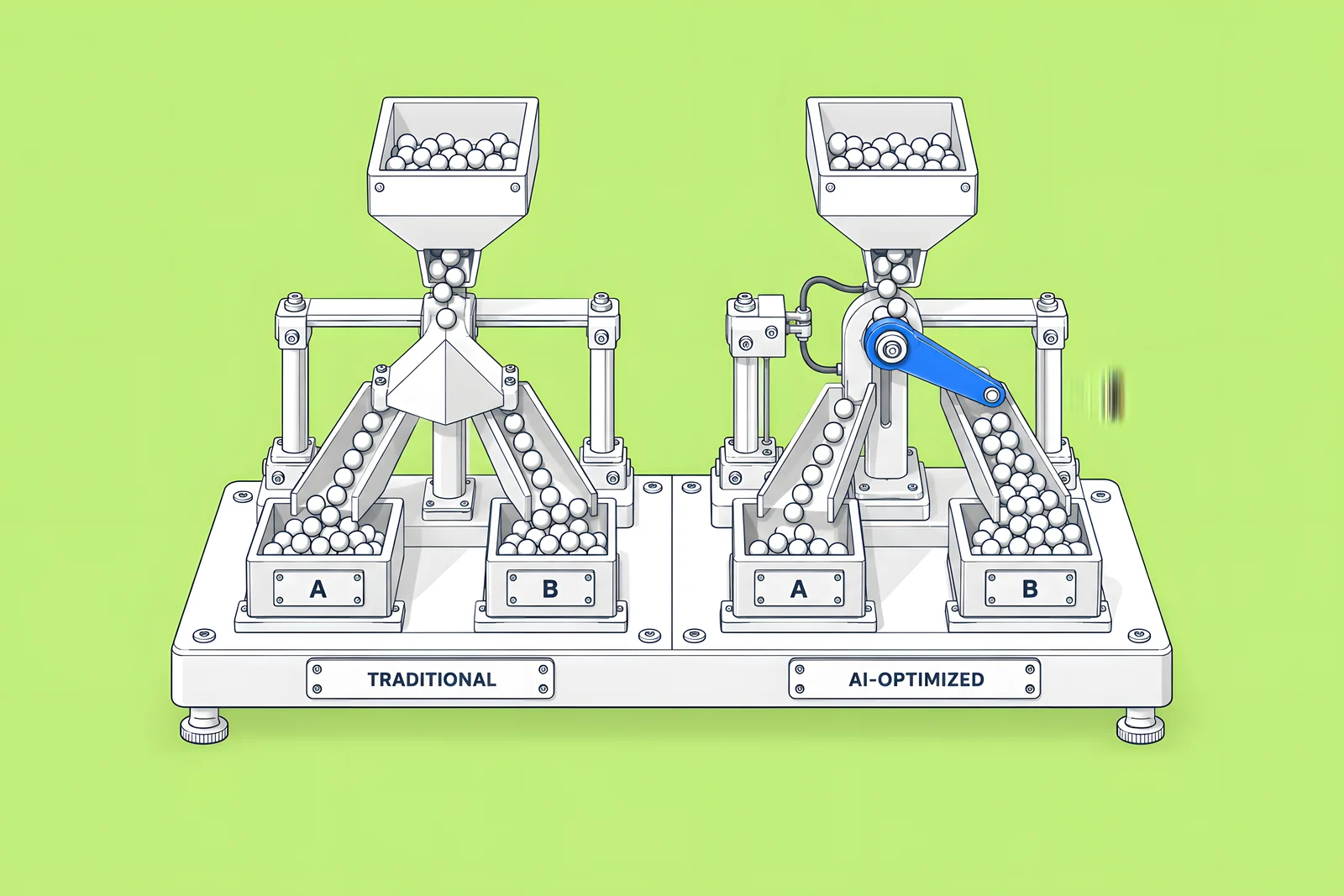
| AI-optimized test | Shifts dynamically based on engagement | Different variations shown to the visitors most likely to convert | Runs indefinitely |
| Manual personalisation | You set rules: this audience sees this variation | No experiment; a set experience per audience | When you stop it |
| AI-optimized personalisation | AI groups visitors and picks variations | Variation shown may differ per visit | Runs indefinitely |
For a first test, a traditional test is usually the clearest choice, because it answers one question with one result you can make permanent. Webflow notes that it takes longer to reach definitive results than an AI-optimized test, and that you need to stop it to add variations. An AI-optimized optimization suits a different job: keeping several ideas running and letting traffic flow to what converts, without picking a single winner.
Not sure which fits? Answer three questions below.
How do you write a hypothesis worth testing?
Write it as one sentence: "Because we see X, changing Y will improve Z." X is evidence (a support ticket theme, a heatmap, a sales objection), Y is a single change, and Z is the goal you will measure.
Keep it to one change. If the variation has a new headline, a new image and a shorter form, a win tells you nothing about which change mattered. Pick a page with enough traffic for the goal you chose, because statistical significance depends on time, sample size and the size of the gap between the variation and the original. Webflow's own example is that running for seven days is not as insightful as running for 30.
Expect plenty of tests to lose. A practitioner quoted in Demand Gen Report's What's Working in B2B Website Optimization (sponsored by Webflow, September 2024) put it bluntly: “The average win rate of A/B experiments is 30%, which means every time you put up an experiment, your theory is probably wrong”. That figure is one practitioner's estimate rather than a measured dataset, but the point holds: a losing test that teaches you something is still useful.
Use the test brief below to write down the hypothesis, set-up and stop rule before you build anything.
How do you set goals and traffic allocation?
Goals. An optimization can have several goals, but only the target goal is used to measure success; the others are tracking goals for reporting. In a traditional test, the target goal decides which variation wins. Webflow offers several goal types:
- AutoGoal: created automatically; counts a conversion when a visitor clicks any clickable element, once per session.
- Click goal: clicks on specific elements, such as a "Book a demo" button.
- Page view goal: visits to one or more pages, counted once per session.
- Form submission goal: available if you integrate Marketo or HubSpot forms.
- Custom goal: actions your own code reports, or off-site conversions.
AutoGoal is a quick read on engagement, not a business result. For a B2B page, a click goal on the main call to action or a form submission goal usually says more.
Traffic. In a traditional test, traffic is split evenly across all variations by default, including the base variation, which mirrors your original content and acts as the control (Base variation overview). You can set a manual split, and you can limit the test to an audience, but only while the test is in a draft or off state. Decide both before launch.

Why shouldn't you edit a live test?
Because the result only means something if conditions stay the same. Webflow's test article says: “Stat. sig. requires all variables to remain unchanged to ensure reliable data — which means the optimization must run from start to finish without edits.”
To make changes, you stop the test, edit it (add a variation, change the goal, apply an audience) and relaunch it. Relaunching starts a new interval and resets the time needed to reach significance. Webflow says you technically can fix a typo in a live variation, but that this introduces new variables, and it recommends stopping the optimization first.
In practice:
- QA the variation on staging, on mobile, before launch.
- Agree with stakeholders that the test page is frozen while the test runs.
- If something must change, stop, change and accept that the clock restarts. Compare results within one interval, not across intervals.

How do consent settings affect who is tested?
Analyze and Optimize share tracking settings. When tracking is enabled for a visitor, Optimize variations are allowed to run and analytics from their session can be recorded. So the tracking default you choose decides which visitors can enter a test. Webflow gives three defaults once tracking is on:
| Default | What it means |
|---|---|
| Always track visitors | Tracking is on for every visitor |
| Let visitors opt out | Tracking is on unless the visitor opts out |
| Don't track by default | Tracking is off unless the visitor opts in |
The two consent-based options need a consent management solution, or Analyze and Optimize will not work properly. Webflow also states that site owners are responsible for deciding their own tracking policy and whether a consent solution is needed under laws such as GDPR and CCPA. This is not legal advice: agree the policy with your own counsel, then set the default to match.
One practical effect: with an opt-in default, only visitors who accept are tested, so the test needs more time to collect the same sample.
How do you read results and decide what to ship?
Webflow says results take about 30 minutes of initial processing after launch, then update every minute. Early numbers move a lot, so do not call a winner from the first days. Wait until Optimize reports that the test has reached statistical significance and named a winner.
Then:
- Ship the winner. You can apply a variation to your base site: stop the optimization, choose the variation and publish. Applying it archives the optimization, and an archived optimization cannot be unarchived, so only do this once you have finished with the test.
- Log the result, including losing and inconclusive tests, with the hypothesis, dates, goal and what you learned.
- Plan the next test from what you learned.
Treat a variation as a page change like any other: check headings, links, forms and meta data before you publish it. Our technical SEO launch checklist covers those checks. Do not expect a set uplift from any single test; the value is in a steady rhythm of well-formed tests.
How ActiveSet does it
ActiveSet is a Webflow Premium Partner based in Bengaluru, India. For a past client, we rebuilt the site on Webflow, then built campaign and test landing pages and set up Webflow Optimize. Builds are reviewed on staging with Markup.io before launch, and work is tracked in ClickUp and a shared Slack channel.
If you want help with test pages, see Webflow landing pages.
Sources
- Webflow Help Center, Differences between Enterprise and non-Enterprise plans, checked 14 Oct 2026
- Webflow Help Center, Manage your Analyze or Optimize add-on, checked 14 Oct 2026
- Webflow, Pricing, checked 14 Oct 2026
- Webflow Help Center, Analyze & Optimize tracking settings, checked 14 Oct 2026
- Webflow Help Center, Intro to Webflow Optimize, checked 14 Oct 2026
- Webflow (with Vanson Bourne), The 2025 State of the Website, Dec 2024 (survey June to July 2024)
- Webflow Help Center, Create a test optimization, checked 14 Oct 2026
- Webflow Help Center, Create a personalization optimization, checked 14 Oct 2026
- Webflow Help Center, AI-optimized optimizations overview, checked 14 Oct 2026
- Webflow Help Center, Variation statistical significance overview, checked 14 Oct 2026
- Demand Gen Report (sponsored by Webflow), What's Working in B2B Website Optimization, Sep 2024
- Webflow Help Center, Optimization goals overview, checked 14 Oct 2026
- Webflow Help Center, Base variation overview, checked 14 Oct 2026
- Webflow Help Center, Optimization intervals, checked 14 Oct 2026
- Webflow Help Center, Review your optimization results, checked 14 Oct 2026
- Webflow Help Center, Apply a variation to your base site, checked 14 Oct 2026
Frequently Asked Questions
Until Optimize reports statistical significance and names a winner. How long that takes depends on your traffic, the conversion rate of the goal and how big the difference is between versions. Webflow notes that time, sample size and effect size all matter, and that a seven-day run is less insightful than a 30-day one. Decide a latest end date in advance in case the test stays inconclusive.
Not inside Webflow's own tools. Optimize is the Webflow product for tests and personalisation, and on non-Enterprise plans it is a separate add-on. Some teams use third-party testing tools through custom code instead, but those tools then need their own consent handling and should be checked for their effect on page speed.
Yes, for goals. Webflow's goals documentation says that if you integrate Marketo or HubSpot, you can track form submissions as goals, and each submission counts as a conversion. Other goal types, such as click goals and page view goals, work without a form integration.
It is the original page content, which every optimization includes and which cannot be edited. In a traditional test it is the control that other variations are compared with. In an AI-optimized optimization it is both the control and a failsafe, and in a manual personalisation it is what visitors see if they match no audience.