How Do You Run an Accessibility Check on a Webflow Site?

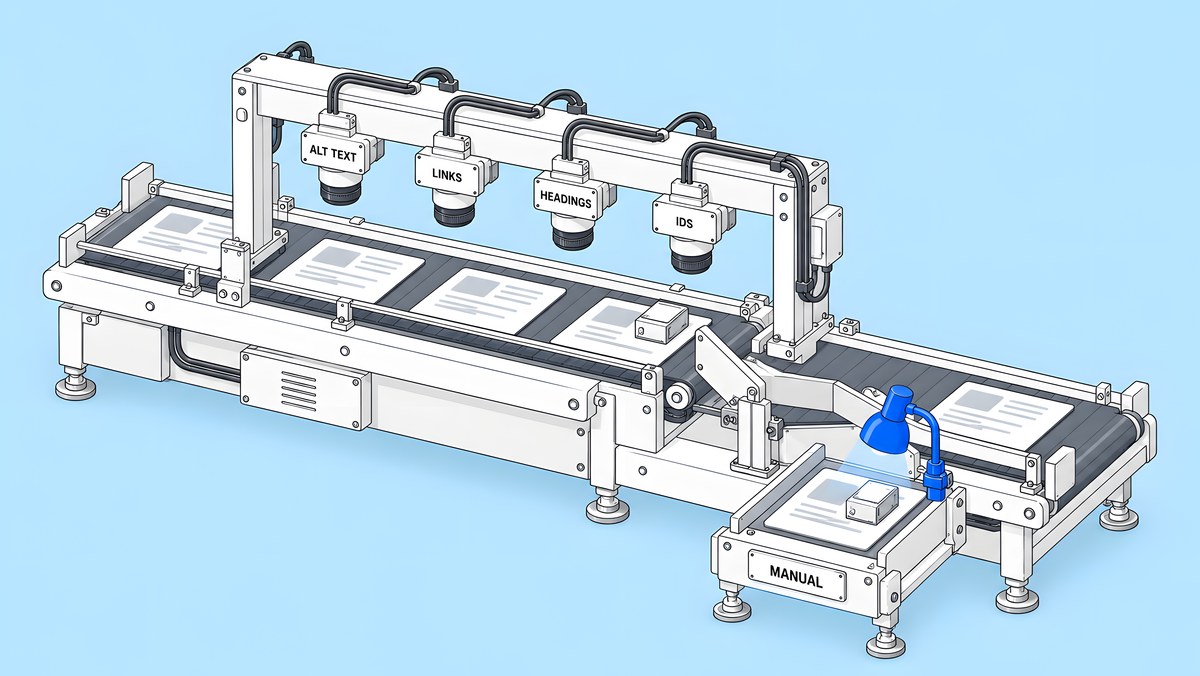
Start with Webflow's Audit panel, which checks four things: missing alt text, non-descriptive links, skipped heading levels and duplicate IDs. It does not check inside components, it does not check CMS-bound or lightbox images, and it does not check colour contrast. Cover the rest by hand: contrast of at least 4.5:1 for normal text, headings and links on every template, keyboard access and visible focus, form labels and error text, pause controls for motion, then a screen-reader pass on your key pages.
This guide is for the web or marketing lead who has been asked, by legal, procurement or a customer, whether the site is accessible. It gives you a credible first pass you can run in a day and shows where a specialist audit is needed. It describes checks against the W3C's WCAG 2.2 success criteria; it is not a certification or legal opinion, and passing these checks does not by itself make a site conformant.
What does Webflow's Audit panel check?
Open it from the Audit panel icon in the Designer's left toolbar. According to Webflow's Intro to the Audit panel, it runs four accessibility checks:
| Check | What it flags | Related WCAG criterion |
|---|---|---|
| Missing alt text | Images with no alt text that are not marked decorative | 1.1.1 Non-text Content |
| Non-descriptive link content | Links with no meaningful text or image alt text | 2.4.4 Link Purpose (In Context) |
| Skipped heading level | An H3 with no H2 above it, for example | Good practice for structure and navigation |
| Duplicate element IDs | The same ID on more than one element | Can break custom code and screen readers |
Webflow marks critical issues with a red square and moderate ones with a yellow triangle. It is quick, so run it on every static page and on each Collection template before you publish.
What does the Audit panel miss?
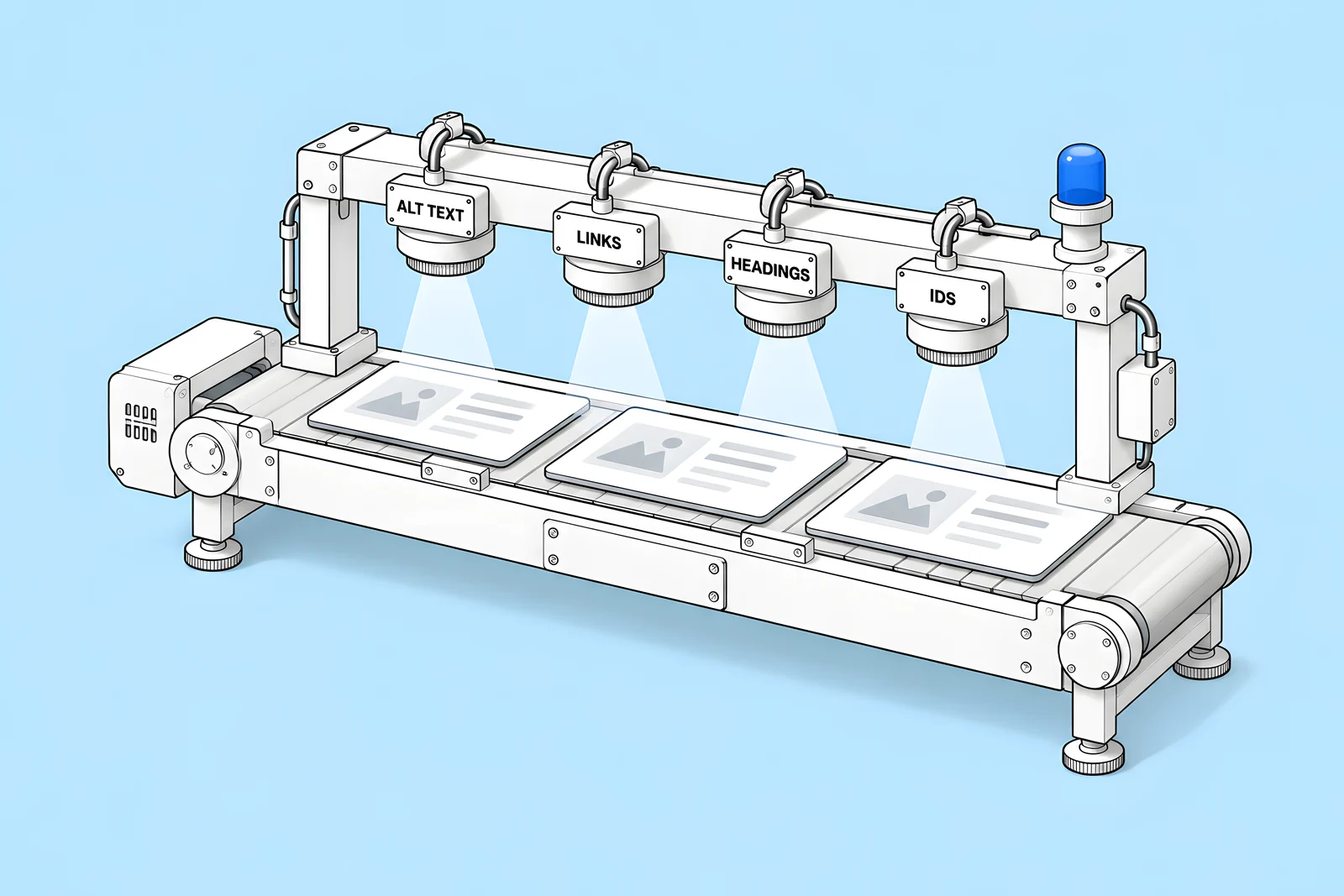
Webflow is clear about the gaps. The same article says: “The Audit panel doesn't check for accessibility or SEO issues within components.” It also says: “Additionally, the Audit panel does not check alt text for CMS-bound images.” Images inside Lightbox media elements are not checked either. And on contrast: “The Audit panel doesn’t include checks for text color contrast ratios, but Webflow has a built-in color contrast checker in the color picker for text elements to help you check your text’s accessibility as you design.”
On most B2B marketing sites that is a large share of the page. Navigation, footers, cards and CTAs are usually components, and blog, case-study and resource images are usually bound to the CMS. Beyond those gaps, no automated check can tell you whether a keyboard user can open your menu, whether focus is visible or whether an error message makes sense. The checklist below covers what the panel cannot.
How do you check colour contrast?
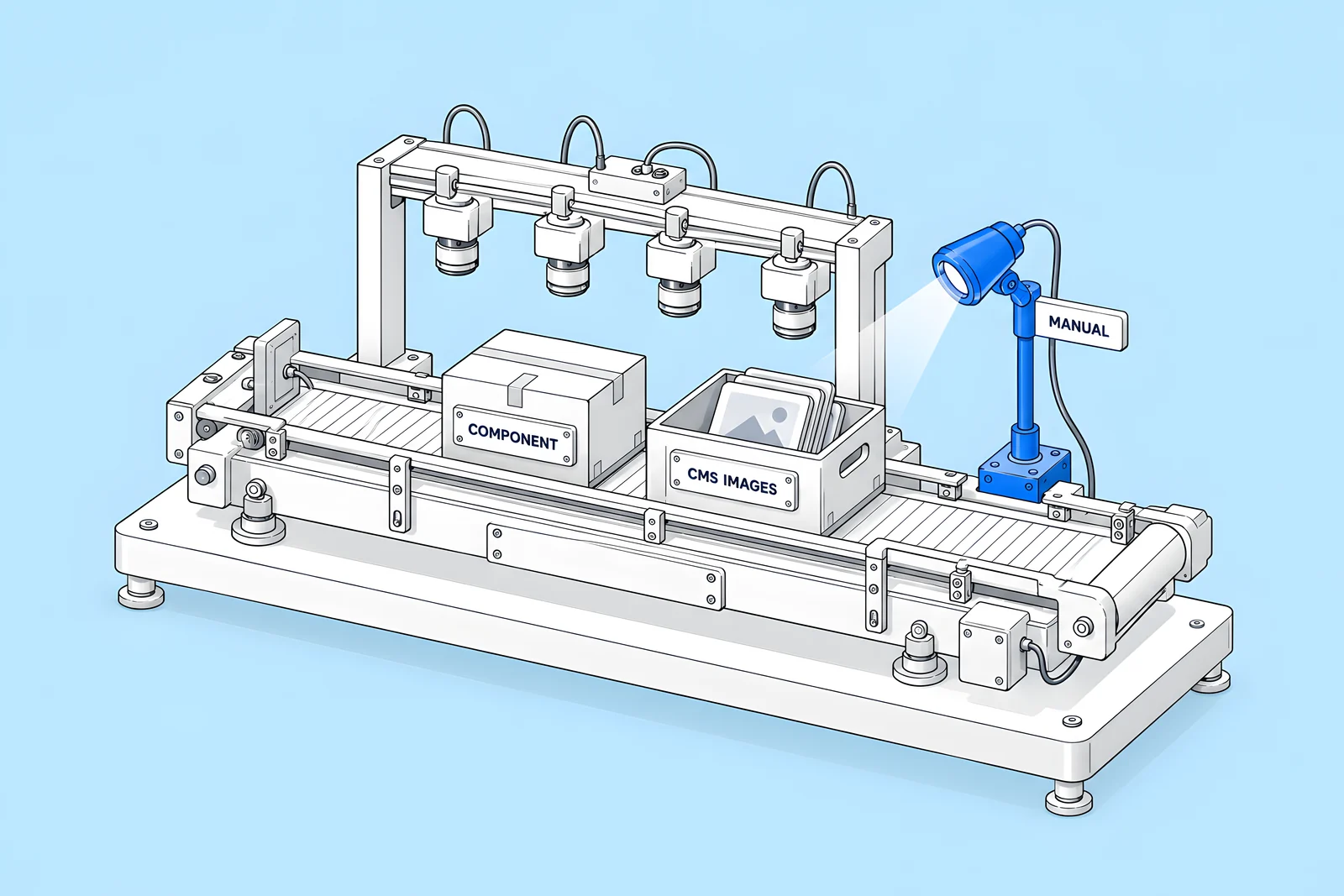
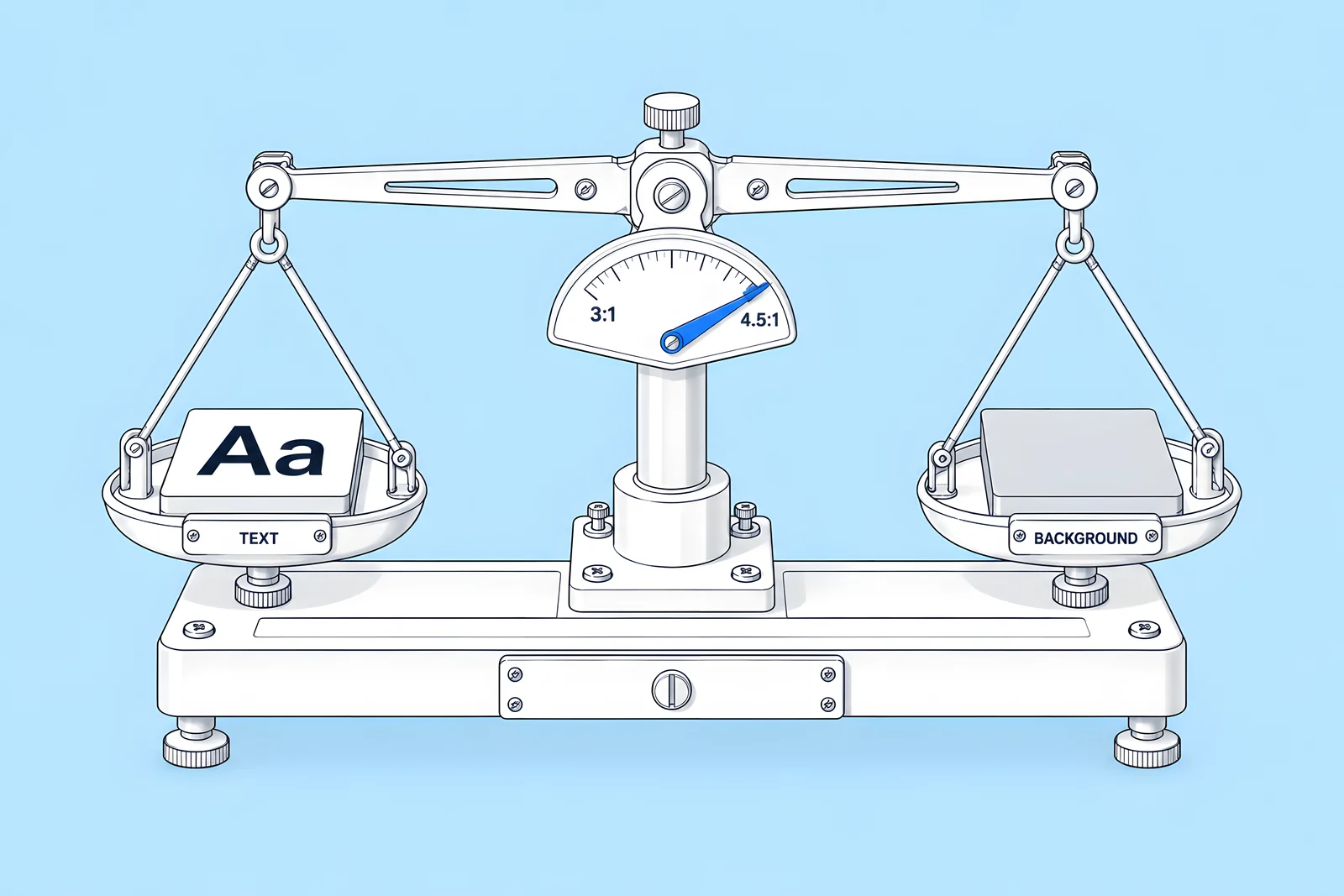
WCAG's Contrast (Minimum) criterion, 1.4.3 at level AA, sets the bar: “The visual presentation of text and images of text has a contrast ratio of at least 4.5:1, except for the following:” and, for large text, “Large-scale text and images of large-scale text have a contrast ratio of at least 3:1;”. WCAG treats large text as at least 18 point, or 14 point bold.
In Webflow, select a text element, open Style panel > Typography and click its colour swatch. Webflow's contrast checker guide explains that the colour picker shows the ratio and a rating of Fail, AA or AAA. It has one limit worth knowing: it does not analyse text placed over images. Hero text on a photo needs a manual check against the darkest and lightest parts of the image behind it.
Check your palette once, not page by page. Calculated with the WCAG formula on 14 Oct 2026, our own accent blue #116dff on white is 4.51:1, just over the 4.5:1 line, while the same blue on our navy #0a192f is 3.90:1, enough only for large text. Small differences like that are why the whole palette is worth checking up front. The calculator below uses WCAG's relative luminance formula.
How do you check headings, alt text and links across templates?
Check every static page, then one item per CMS template, choosing the item with the longest content. A template that is correct for one item can still go wrong for another, for example when a rich text field starts with an H3 or an editor leaves an image field's alt text empty.
For each page:
- Headings. One H1, then levels in order with no skips. Webflow's Audit panel catches skips on the page, but not inside components or in CMS rich text.
- Alt text. Every informative image has alt text that says what it shows or does. Webflow's alt text guide says to mark an image decorative only if a visitor would not miss anything without it. For CMS images, bind the alt text to a field so editors fill it in with every item.
- Links. Link text says where the link goes. A
Read morelink repeated across a list of cards fails that test unless the card's context makes the purpose clear. - Language. The page declares its language, so screen readers pronounce it correctly.
The checker below reads a page's HTML in your browser and flags the most common issues. Paste in the page source from your browser's view-source for each template.
How do you test keyboard and focus?
Put the mouse away and use Tab, Shift+Tab, Enter, Space and Escape. WCAG 2.1.1 Keyboard requires all functionality to be operable through a keyboard, 2.1.2 No Keyboard Trap requires that focus can always move away again, and 2.4.7 Focus Visible requires a visible focus indicator.
Work through this on each template:
- Every link, button and field is reachable, in an order that matches the visual layout.
- Focus is visible on every control. Webflow's accessible elements guide says that Tabs, Dropdown, Slider and Navbar elements need a focused-state style set before they are fully keyboard accessible. Check that nobody has removed outlines to tidy the design.
- Menus, dropdowns and modals open and close with the keyboard, and focus does not get stuck inside them.
- A skip link, such as
Skip to content, lets keyboard users jump past repeated navigation, one common way to meet 2.4.1 Bypass Blocks. - Custom code and embeds, such as chat widgets, booking tools and video players, are tested too. They are where keyboard traps usually live.
What about forms, motion and media?
Forms. Every field needs a visible label, not just placeholder text, which disappears as people type. WCAG 3.3.2 Labels or Instructions requires labels or instructions, and 3.3.1 Error Identification requires that “the error is described to the user in text”. Webflow's own guide to form field labels notes that fully accessible forms currently need a custom solution: give each field a unique ID and add a custom for attribute on its Label that matches it.
Motion. Webflow's guide to thoughtful motion and animation says to “Provide and show controls to pause and/or stop moving or blinking elements that start automatically and last more than 5 seconds in parallel to other content (e.g., a slide carousel)”, which matches WCAG 2.2.2 Pause, Stop, Hide. The same guide recommends a play/pause button on background videos, respecting reduced-motion preferences in Interactions with GSAP, and never flashing more than three times per second. Test with your operating system's reduced-motion setting turned on.
Media. Prerecorded video with audio needs captions under 1.2.2 Captions (Prerecorded). Check each embedded player, because captions are set in the video platform, not in Webflow.
Finish with a short screen-reader pass on the homepage, one key template and the main form: VoiceOver on macOS or NVDA on Windows. Listen for missing labels, unlabelled buttons and headings that do not describe their sections.
How often should you re-check?
Re-run the checks whenever something structural changes, and on a regular schedule:
- After any template or component change, because one component can appear on every page.
- After adding custom code or a third-party embed.
- When editors start a new content type in the CMS.
- Quarterly as a routine sweep, using the same list each time so results are comparable.
Our Webflow maintenance checklist shows where these checks fit in ongoing upkeep, and the acceptance checks in our Figma to Webflow handoff guide catch many issues before the build starts.
How ActiveSet does it
ActiveSet is a Webflow Premium Partner based in Bengaluru, India. We build on Finsweet Client-First with reusable components, which keeps fixes in one place: correct a component's heading level or focus style once and every page that uses it is fixed. Builds are reviewed on staging with Markup.io before launch.
See how we audit sites for the checks we run before scoping, or Webflow development if you need fixes built.
Sources
- Webflow Help Center, Intro to the Audit panel, updated 26 Mar 2026, checked 14 Oct 2026
- Webflow Help Center, Ensure your text meets color contrast standards, updated 8 Sep 2026, checked 14 Oct 2026
- Webflow Help Center, Include alt text on images, updated 30 Jan 2026, checked 14 Oct 2026
- Webflow Help Center, Accessible elements in Webflow, updated 26 Mar 2026, checked 14 Oct 2026
- Webflow Help Center, Use clear, visible form field labels and help text, updated 25 Jun 2025, checked 14 Oct 2026
- Webflow Help Center, Use thoughtful motion and animation, updated 30 Sep 2025, checked 14 Oct 2026
- W3C, Web Content Accessibility Guidelines (WCAG) 2.2, checked 14 Oct 2026
- W3C WAI, Understanding Success Criterion 1.4.3: Contrast (Minimum), checked 14 Oct 2026
Frequently Asked Questions
No. Webflow's Audit panel runs four checks: missing alt text, non-descriptive links, skipped heading levels and duplicate IDs. It does not check inside components, CMS-bound images, lightbox images or colour contrast, and it cannot test keyboard use, focus, forms or motion. A clean panel is a good start, but you still need manual checks and a screen-reader pass.
For WCAG 2.2 level AA, success criterion 1.4.3 requires at least 4.5:1 between text and its background. Large text, meaning at least 18 point or 14 point bold, needs at least 3:1. Logos and purely decorative text are exempt. Webflow's colour picker shows the ratio and an AA or AAA rating for text elements, but not for text placed over images.
Add a plain text field to the Collection for alt text, then bind the image's alt text to that field in the image's Element settings, as Webflow's alt text guide describes. Make the field required if every item has an informative image, so editors cannot publish without it. The Audit panel does not check CMS-bound images, so spot-check items after publishing.
If you have a contractual or legal requirement, or a customer asks for a conformance report, yes. The checks in this guide find common issues and show where your site stands. A specialist audit tests against every WCAG success criterion with assistive technology and documents the results in a form procurement teams expect.