Webflow Forms or HubSpot Forms: Which Should Capture Your Leads?

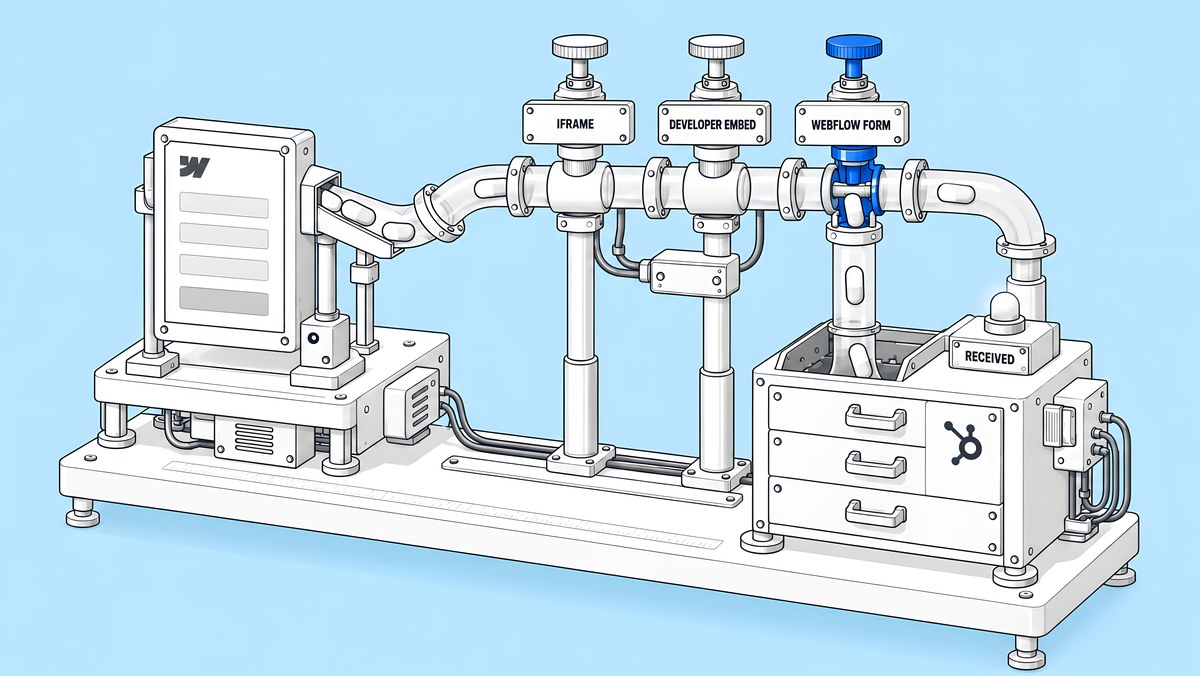
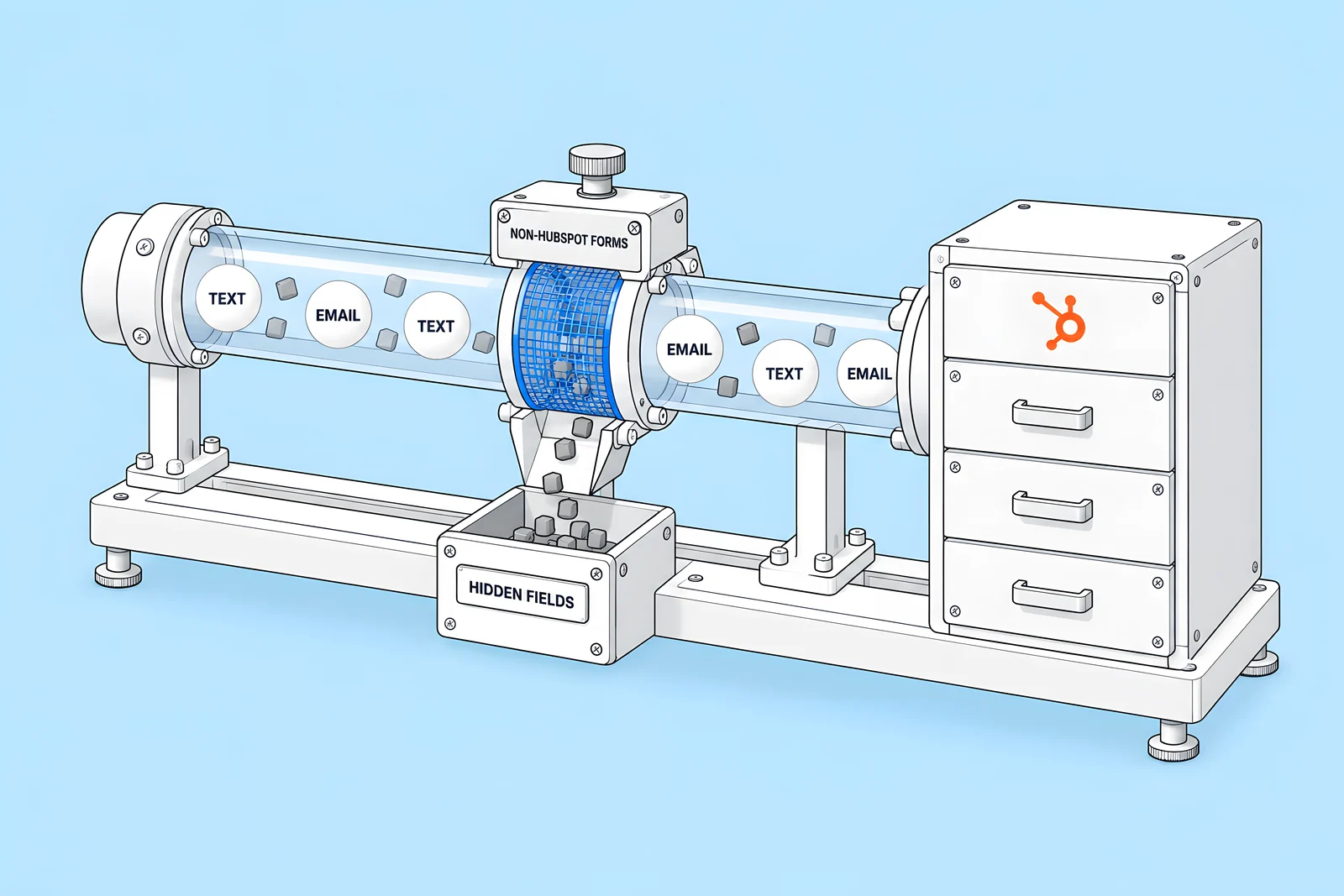
Webflow's HubSpot app gives you three routes. An iframe embed is managed entirely in HubSpot. A developer embed lets you style the HubSpot form in Webflow, but it needs a HubSpot Marketing Professional or Enterprise plan. A native Webflow form can send submissions to HubSpot through HubSpot's non-HubSpot forms tool, but only text inputs are supported and hidden fields are not collected. Choose by who will edit the form after launch and which field types you need, then test every form on staging before you publish.
This guide is for marketing ops and demand-gen leads who run HubSpot and have a Webflow site. It compares the routes, helps you pick one, and lists the quiet failures that cost leads without anyone noticing. Every platform fact links to Webflow's or HubSpot's own documentation.
What are your options for connecting Webflow forms to HubSpot?
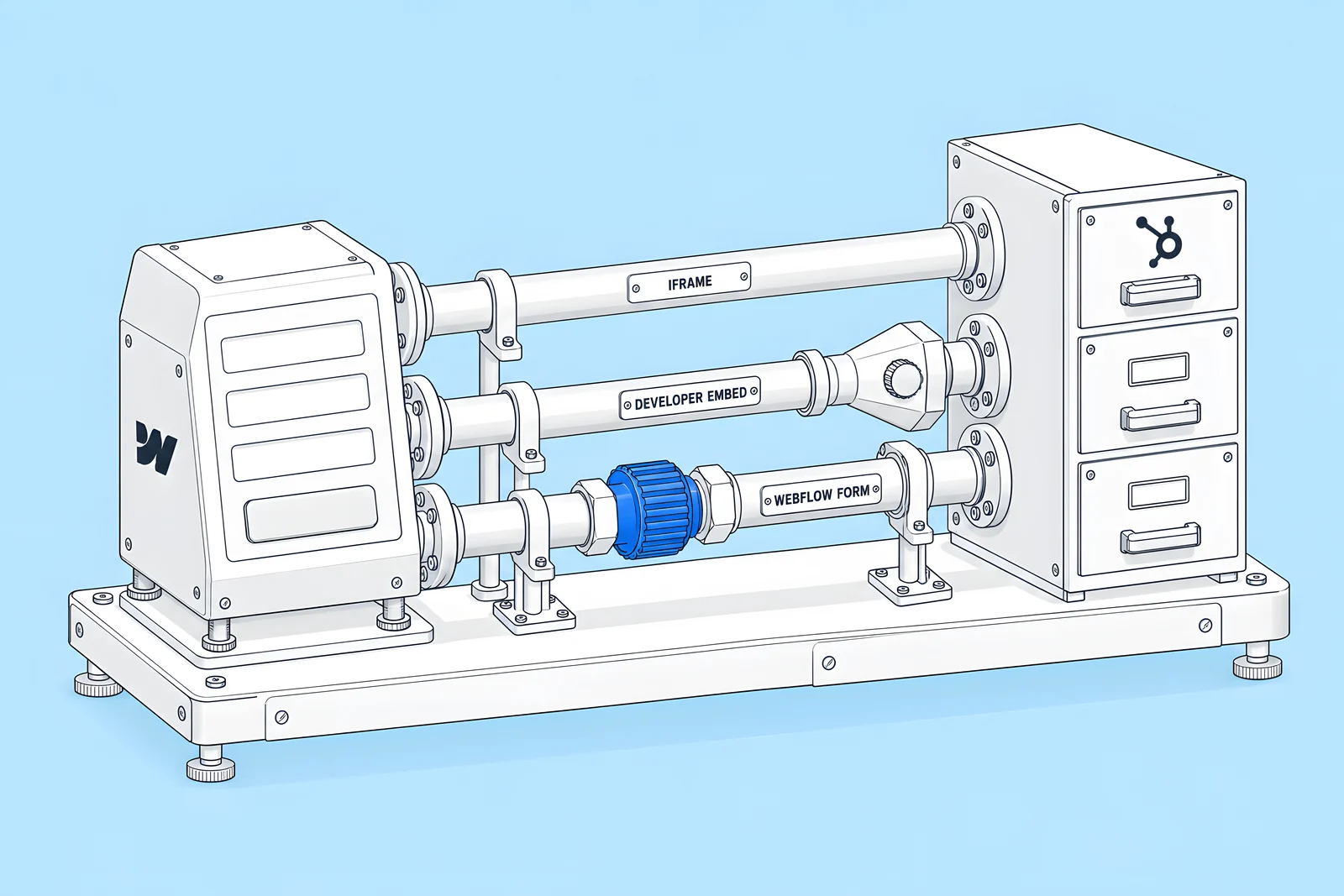
Webflow's Install and use the HubSpot App article describes three connection options. They differ in where the form lives, who can change it and what it can contain.
| iframe embed | Developer embed | Webflow form | |
|---|---|---|---|
| Where the form is built | HubSpot | HubSpot (new Form Editor) | Webflow |
| Who changes fields | Marketing, in HubSpot | Marketing in HubSpot, then a refresh in Webflow | The web team, in Webflow |
| Styling | Set in HubSpot | Styled with Webflow's Style panel | Styled like any Webflow element |
| HubSpot plan | Any plan with access to the form | Marketing Professional or Enterprise | Non-HubSpot forms turned on |
| Field types | Whatever the HubSpot form has | Whatever the HubSpot form has | Text inputs only |
| After a change in HubSpot | Applies to the live site without a republish | Pull Layout in the app, then publish | Not applicable |
A few details from the same article matter in practice. HubSpot forms go inside a div, container or slot, not inside a Webflow Form block. A developer embed that is edited in an unsupported way falls back to an iframe to protect submissions. The current app only supports forms made in HubSpot's new Form Editor; older forms need Webflow's legacy HubSpot app. Installing the app needs Site Admin or Designer permissions in Webflow.
Which option fits your team?
Start with one question: after launch, who will change the form? If marketing owns the fields and edits them in HubSpot, a HubSpot form (iframe or developer embed) keeps that control where it is. If the web team owns the form and it only needs a few text fields, a native Webflow form is simpler to style and lives with the rest of the page.
Then check the two hard limits. The Webflow-form route supports text inputs only, so a form with dropdowns, radio buttons, checkboxes or text areas has to be a HubSpot form. And the developer embed needs Marketing Hub Professional or Enterprise; Webflow's FAQ says that without one you can use the iframe option or the Webflow-form option instead.
The tool below walks through these questions and ends with a route, its trade-off and what to test.
How do field names map between Webflow and HubSpot?
For the Webflow-form route, mapping happens by name. Webflow says the non-HubSpot forms script looks at static forms on the page and maps field submissions to HubSpot “as long as the name attributes match to HubSpot form name attributes”. HubSpot's Use non-HubSpot forms article adds the rules on its side:
- Fields cannot be mapped by hand. HubSpot tries to match each field automatically: field name to the property's internal name first, then field label to property name, then the other two combinations.
- Only single-line text properties match. If HubSpot cannot find a matching single-line text property, the value stays in the submission data but is not stored on the contact record.
- An email field is required. The form must have an input with type email.
- Partial submissions are recorded. Every click on submit counts, so a visitor who submits with a required field empty and then fixes it creates two submissions.
Name every Webflow field with the HubSpot internal name you want it to land in, for example firstname, lastname and email, and check the property type in HubSpot before launch.
Give every form a unique, descriptive name too. Webflow's Form submissions article notes that all forms start as "Email Form", so unnamed forms pile their data into one table. Its article on the older HubSpot forms integration is blunter: “Remember, each Form block in your site needs to have a unique Form name.”
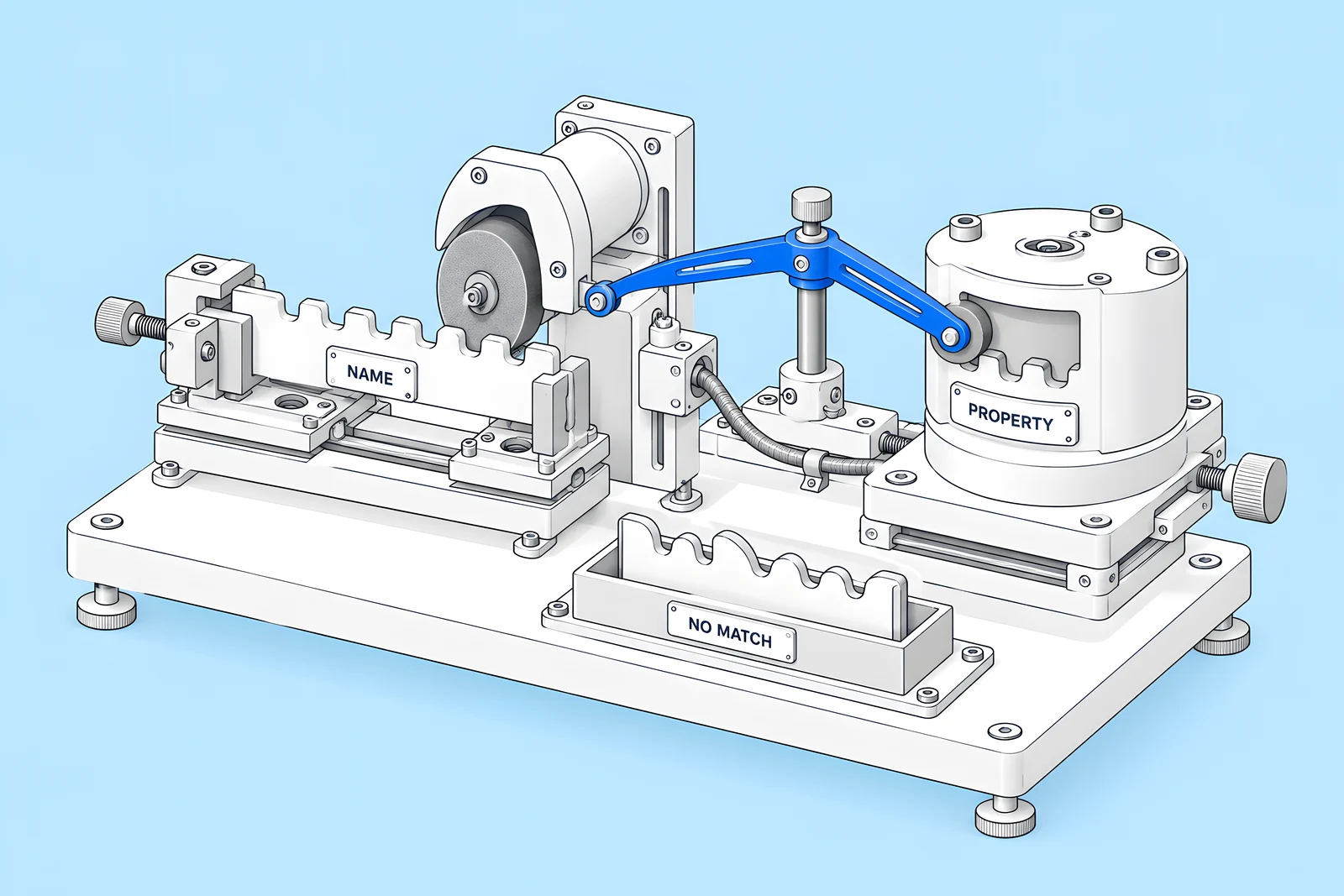
Paste your field list into the checker below to catch the common mapping problems before you build.
What quietly breaks a Webflow-to-HubSpot form?
Most broken lead capture does not show an error. The form says thank you, and the lead never arrives. HubSpot's requirements for non-HubSpot forms explain most of these cases. The form must:
- be a static HTML form wrapped in form tags, with a standard submit input;
- not sit inside an iframe;
- not have JavaScript bound to the submit event or the submit button's click;
- be present when the page first loads, because forms added after loading are not collected;
- not contain hidden fields or sensitive fields such as a card number.
HubSpot also says the tool depends on its tracking code: if the code does not load, for example because of a script conflict or a browser extension that blocks scripts, the submission is not collected. Two more failures come from Webflow settings:
- A custom form action turns off Webflow's own handling. Webflow's Form submissions article says that with a custom action URL, “Webflow will no longer send form submission notifications, as the custom action bypasses Webflow's form processing.”
- Bot blocking changes the submit button. According to Prevent spam in form submissions, when bot blocking is on, submit buttons are disabled while bot protection loads. Style that disabled state so visitors do not think the form is broken.
If you use a honeypot field against spam, check it against HubSpot's rule on hidden fields on staging before launch.
How do you keep source and UTM data?
Not in hidden fields on the Webflow-form route, because HubSpot says plainly: “The tool does not collect information from any hidden fields.” That rules out the common habit of copying UTM parameters into hidden inputs.
Rely on HubSpot's tracking code instead. HubSpot's default contact properties include Original Traffic Source, First page seen and First referring site, which HubSpot sets automatically. Page views are recorded when the tracking code fires and the visitor's cookie is associated with a contact, for example after they fill out a form with cookie tracking enabled. In the Webflow app, the tracking code is a toggle: Settings, then Track user activity on site.
If you must pass specific campaign values through the form itself, use a HubSpot form route rather than a native Webflow form, and check what your HubSpot plan supports before you promise reports to anyone.
Who should receive and check submissions?
Name people, not inboxes. Webflow recommends a name-based address rather than a role-based one such as info@ for notification emails, because shared addresses can cause deliverability problems. HubSpot has its own notification setting for non-HubSpot forms, which only accepts existing HubSpot users.
| Job | Owner | Where they look |
|---|---|---|
| Receives new-lead notifications | A named person in sales or marketing | Email from Webflow or HubSpot |
| Confirms each form still delivers | A named weekly tester | A labelled test entry in HubSpot |
| Fixes a broken form | The web team or agency | Webflow form settings and the HubSpot app |
| Owns the HubSpot properties | Marketing ops | HubSpot property settings |
When a lead goes missing, check in this order: the form's send-to settings in Webflow, the submission list in Site settings, then Forms, the form's entry in HubSpot, and the browser console on the live page. Our Webflow maintenance checklist has a fuller section on keeping forms delivering week to week.
Why spend the effort? HubSpot's 2026 State of Marketing report (vendor research) opens its list with “The 5 top metrics that matter to marketers in 2026: Lead quality and MQLs (39%), Lead to customer conversion rate (34%)”, followed by ROI, acquisition cost and lead volume. The first two depend on every submission arriving with its data intact.
How do you test the integration before launch?
Webflow's own steps for both the developer embed and the Webflow-form route are the same shape: publish to staging, confirm submissions are received in HubSpot, then publish to production. Use a labelled test entry for each form, such as "TEST staging contact form", so nobody mistakes it for a real lead, and delete test contacts afterwards.
Test the failure paths too: submit with an empty required field, an invalid email and, for developer embeds, each error and success state the app lets you style. Repeat one labelled test per form on the live domain after launch, because Webflow notes that a site needs an active Site plan to receive form submissions on a custom domain.
Do consent settings affect HubSpot tracking?
Yes. HubSpot's cookie consent banner, according to its cookie tracking settings article, lets visitors opt in or out of being tracked, and works on external pages that carry the HubSpot tracking code. HubSpot's list of cookies describes the hubspotutk cookie as one that “is passed to HubSpot on form submission and used when deduplicating contacts”, and classes it as non-essential.
So whichever consent tool you use, decide with your legal team how it treats the HubSpot tracking code, then test the form with consent given and with consent refused. On the Webflow-form route this matters twice, because the non-HubSpot forms tool depends on the tracking code loading.
How ActiveSet does it
ActiveSet is a Webflow Premium Partner based in Bengaluru, India. We have been Privado's Webflow development partner since May 2022, and our delivered work for Privado includes HubSpot form integrations, alongside CMS templates and ongoing technical SEO. Builds are reviewed on staging with Markup.io before launch, and handover includes editor guides or short recorded walkthroughs so the marketing team knows which forms live where.
See the Privado case study, or our Webflow integrations page if you are connecting Webflow to HubSpot or another CRM. If a lead form is part of a launch, our technical SEO launch checklist covers the other checks for launch day.
Sources
- Webflow Help Center, Install and use the HubSpot App, updated 7 Nov 2025, checked 14 Oct 2026
- Webflow Help Center, HubSpot forms integration, updated 30 Jun 2025, checked 14 Oct 2026
- Webflow Help Center, Form submissions, updated 1 Aug 2026, checked 14 Oct 2026
- Webflow Help Center, How do I add forms in Webflow?, updated 18 May 2026, checked 14 Oct 2026
- Webflow Help Center, Prevent spam in form submissions, updated 31 Oct 2025, checked 14 Oct 2026
- HubSpot Knowledge Base, Use non-HubSpot forms, updated 27 Jul 2026, checked 14 Oct 2026
- HubSpot Knowledge Base, HubSpot's default contact properties, updated 21 Sep 2026, checked 14 Oct 2026
- HubSpot Knowledge Base, Customize cookie tracking settings and consent banners, checked 14 Oct 2026
- HubSpot Knowledge Base, Cookies set in your visitor's browser by HubSpot, checked 14 Oct 2026
- HubSpot, 2026 State of Marketing Report (vendor research), 2026, checked 14 Oct 2026
Frequently Asked Questions
Yes. Webflow's HubSpot app can add a Webflow form whose fields map to HubSpot through HubSpot's non-HubSpot forms tool. You must turn on non-HubSpot forms in HubSpot first, use text inputs only, include an email-type field and name each field after the HubSpot property it should fill. Test on staging before publishing.
Webflow says the most common cause is a structure change in HubSpot that breaks style inheritance. If the app detects invalid changes, the developer embed reverts to an iframe to protect submissions. Refresh the form in Webflow with Pull Layout; if that fails, delete the embedded form in the Navigator and add it again.
It depends on how the form sends data. Webflow can send a form to several destinations, such as Webflow, email notifications and connected apps. A custom form action is different: it bypasses Webflow's form handling, so Webflow does not store the submission or send notifications. Check each form's send-to settings.
Not for every route. Webflow lists HubSpot Marketing Professional or Enterprise as a requirement only for the developer embed. The iframe embed and the Webflow-form route do not carry that requirement in Webflow's article, though the Webflow-form route needs non-HubSpot forms turned on. Check HubSpot's current plan details for any reporting you rely on.
HubSpot records a non-HubSpot form submission every time the submit button is clicked. If your form validates required fields, a visitor who submits too early and then corrects the form creates one partial and one complete submission. HubSpot also adds all submissions from the same browser cookie to the same contact.